Once you have filled the "Summary" and "Added the questions" of the connect, as shown in the previous. It is required to Configure the session as well.
1. Basic Settings:

- Sharing options - The session can be kept private so as no one can tamper with the configuration. It can also be shared with the whole organization or with specific team members.
- Social Authentication: Candidate is asked to sign in with social media accounts to authenticate the identity during the session.
- Send Notifications to - You can choose the people who should get notifications related to this connect. If you choose the first option - "Send all notification to inviter", only the recruiter who has invited the candidate for the session will receive the notifications. You can also choose the second option - "Send notifications with other team members" if you wish others should also get the notifications related to the connect session.
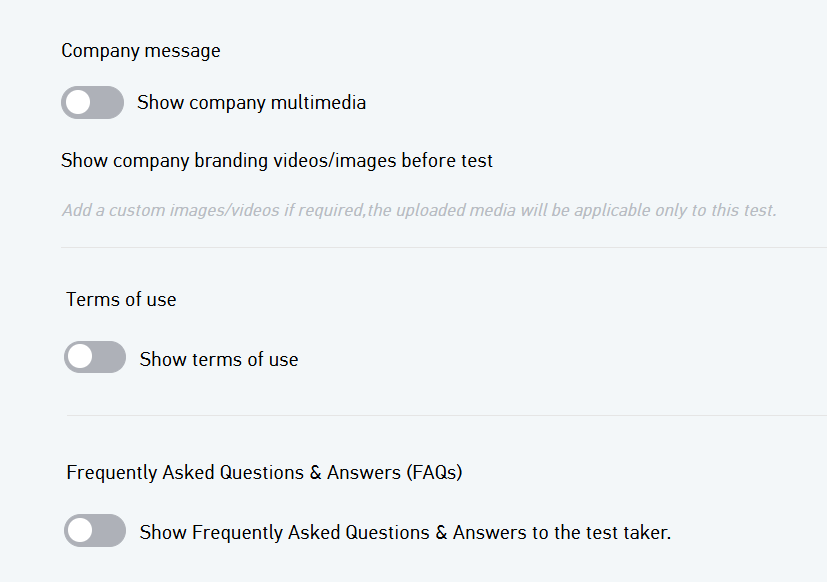
- Company Branding - Enable this option if you wish to showcase or brand your company and the images/ videos uploaded will be shown to the candidate before the connect session starts.
Note that, only the glider admin accounts have the access to upload/manage the company's images/videos. - Company message: This option enables the display of company branding videos or images before the test starts.
It can be used to create a professional experience and give candidates a better understanding of the company culture and identity. - Terms of use: Enabling this option makes the terms and conditions visible to the test taker before they begin the assessment.
This helps ensure that candidates are informed about the platform’s policies.This section provides the rules, conditions, and policies that candidates must agree to before taking the test.
It ensures transparency regarding data usage, test guidelines, and candidate responsibilities. - FAQs : This section contains common questions and answers related to the test process.
2. Skill based settings:
Note: Adding skills is optional in connect session.
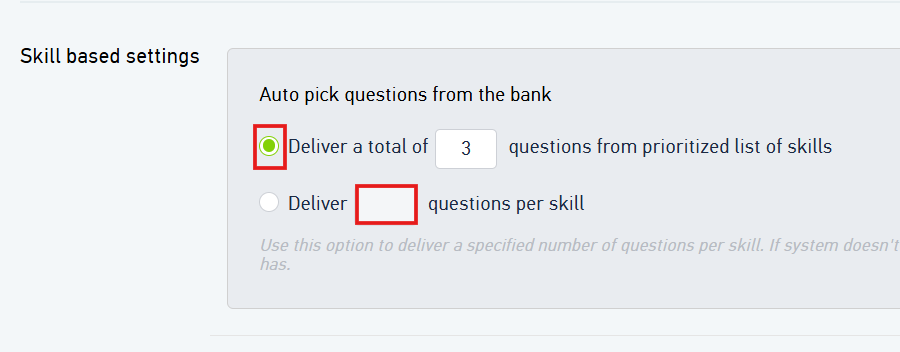
- Auto pick questions from the bank - You can select the first option to choose the total number of questions you wish to ask the candidate and the bot will prioritize the skills, divide the questions equally and ask the same to the candidate OR you can choose the second option to explicitly specify the number of questions of each skill that you wish to be asked to the candidate.
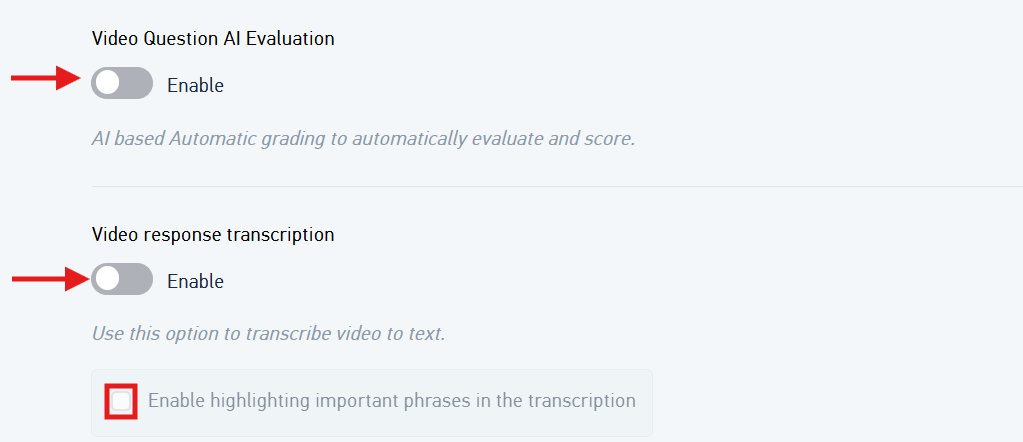
- Video Question AI Evaluation - You can enable this option if you want AI to score the candidate, which will eliminate the manual grading.
- Video response transcription - If you want a transcribe of the video, then you can enable this option.
3. Cut-off criteria settings
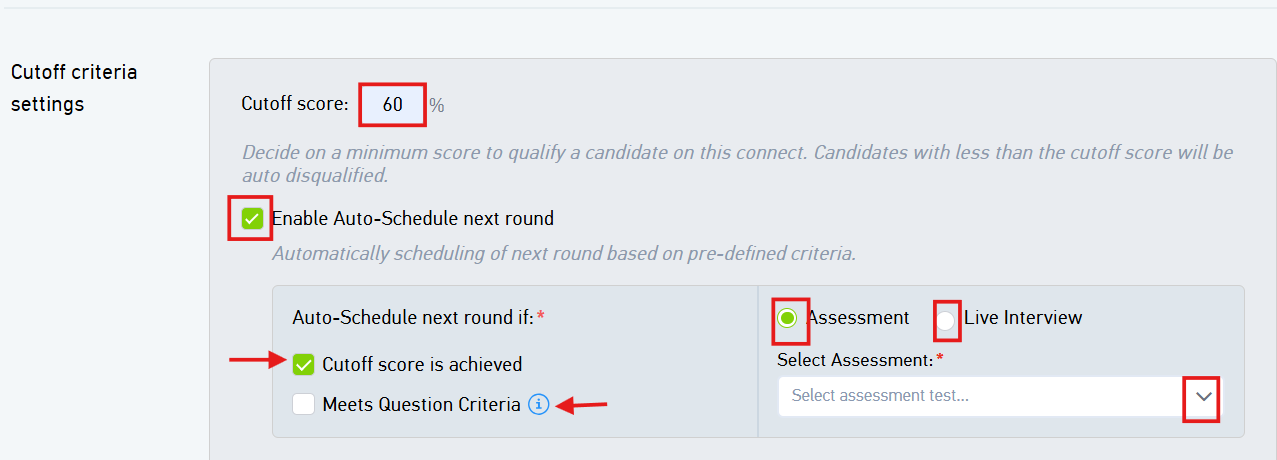
- Cutoff score - You can set up a cutoff score and any candidate scoring below the cutoff percentage will be automatically disqualified.
- Enable Auto-Schedule Next Round
This option automates the scheduling of the next round for eligible candidates.
It reduces manual effort by automatically progressing candidates based on predefined conditions. - Auto-Schedule Next Round If
This section specifies the conditions that candidates must meet to be automatically moved to the next stage.
Recruiters can choose one or multiple criteria to control the scheduling process. - Cutoff Score is Achieved
When enabled, candidates who meet or exceed the defined cutoff score automatically qualify for the next round.
This ensures that only candidates with the required cutoff score level proceed further. - Meets Question Criteria
This option checks whether candidates satisfy specific question-based conditions or mandatory requirements. - Select Assessment
This dropdown allows recruiters to choose the specific assessment that will be assigned in the next round.
It ensures the correct test or evaluation is automatically scheduled for qualified candidates.
In this setting, we have the following options:
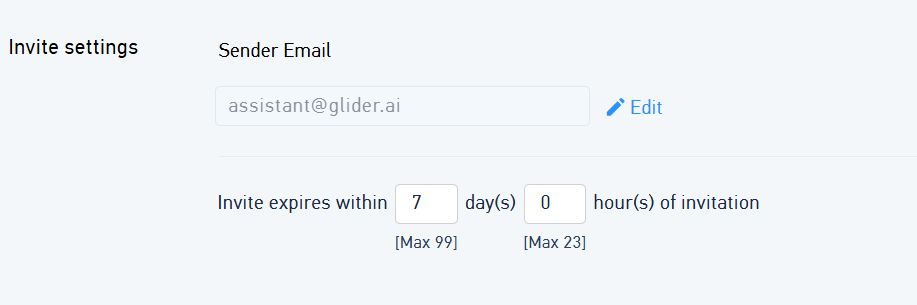
4. Invite settings - If you want the test link to expire after a set number of days, select this option and enter the number in the text box. The expiry date will be counted from the date of sending the invite.
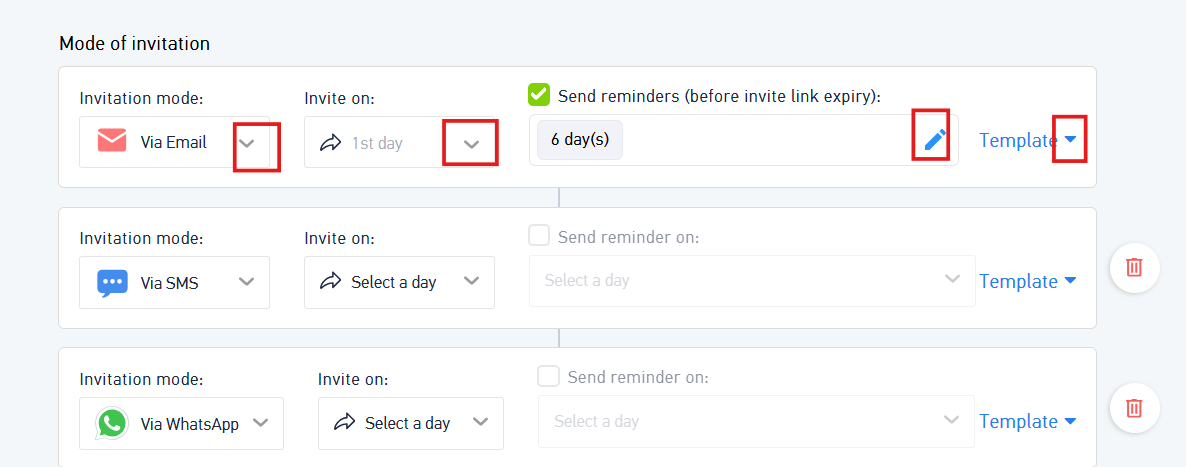
- Mode of invitation - There are three modes of invitation available
- a)Invitation via Email-If you enable this option, the candidates will be receiving the invite over an Email containing the link to take the connect session.
- b) Invitation via SMS - If you enable this option, the candidates will be receiving the invite over a message alert on their mobile phones containing the link to take the connect session.
- c) Invitation via WhatsApp - If you enable this option, the candidates will be receiving the invite over WhatsApp containing the link to take the connect session.
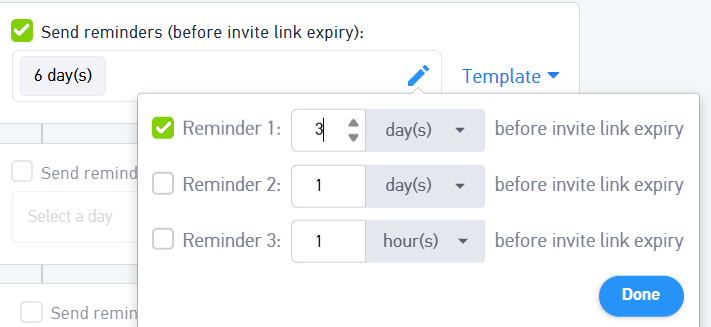
Note - The connect session can also be taken on mobile browsers. - Send reminder email - You can send multiple reminders to the candidates "n" days before the link gets expired
- Email Template - In this setting, you can choose the email that you wish to send to the candidate to invite. There is a standard "Connect recruit invite" template that contains all the details required to take the connect session. However, if you wish to send a different invite email, you can select a different default template from the dropdown.
Next step is to invite the candidates for the connect chatbot
Was this article helpful?
That’s Great!
Thank you for your feedback
Sorry! We couldn't be helpful
Thank you for your feedback
Feedback sent
We appreciate your effort and will try to fix the article