1. To begin with your connect session.
- Click on Engage on the top left and select Connect from the drop-down.
- Click on New Connect on the Top right as shown in the image below.
2. Summary
- Enter the Job description or directly upload it from the computer
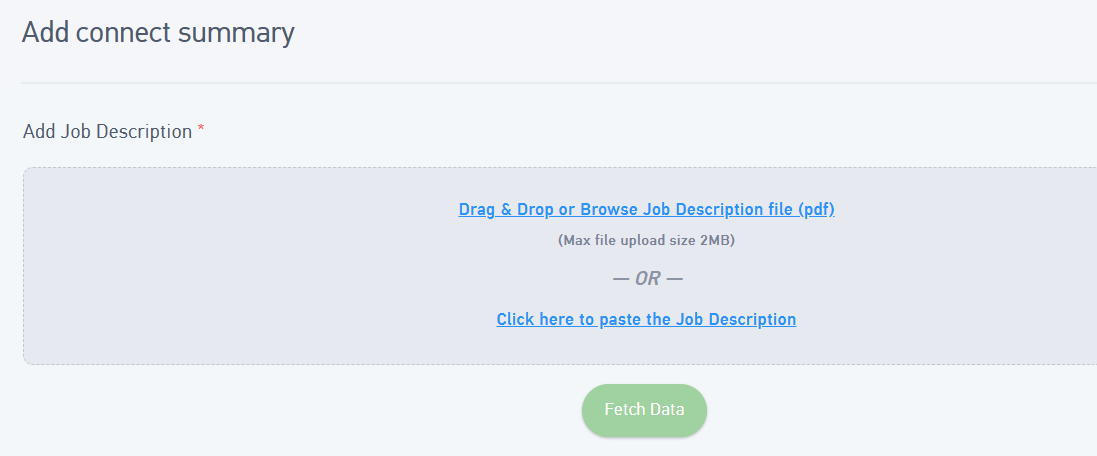
- Click on Fetch Data so that the system can automatically extract job-related information from the Job Description
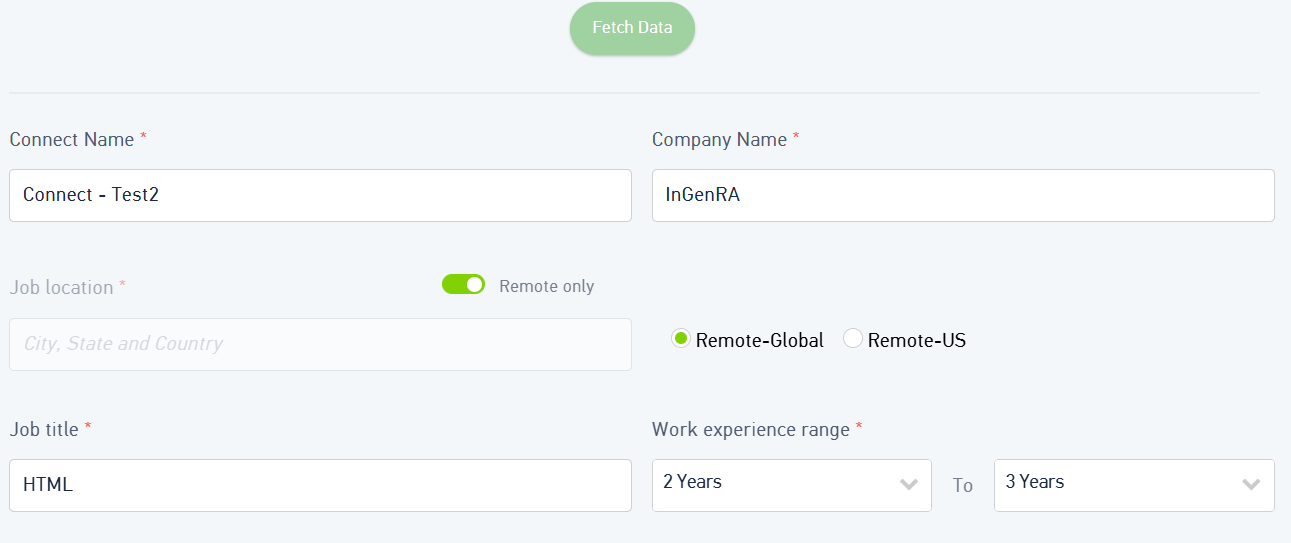
- Enter the Connect name and the company name
- The Company Name will be picked up automatically by the system.
- Enter the Job Location.
- Enter the Job Title if it is not automatically fetched
- Enter the work exp range
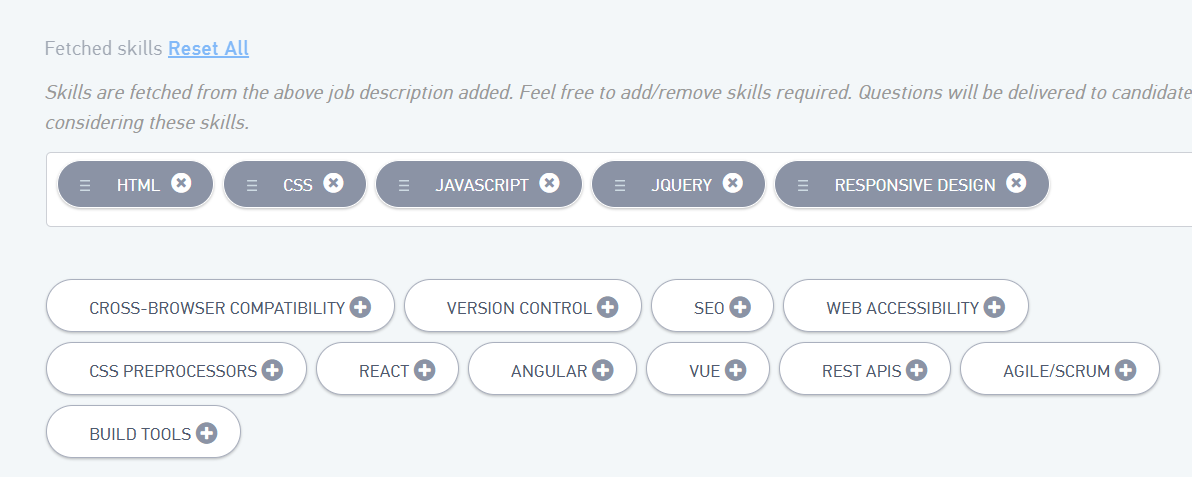
- You can add or remove the skills
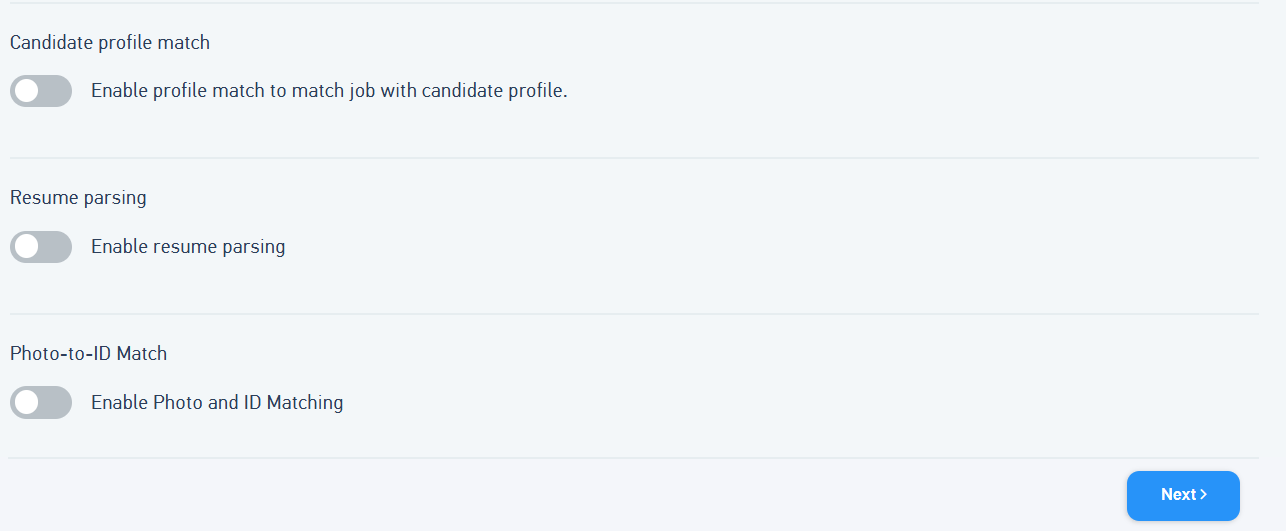
- Candidate profile match : This needs to be enabled if you want to match the Job with candidate profile
- For the above matching, resume parsing needs to be enabled
- Enable photo and Id matching : This tells us if the candidate's profile picture is matching with Id proof's picture or not.
- Click on Next
Was this article helpful?
That’s Great!
Thank you for your feedback
Sorry! We couldn't be helpful
Thank you for your feedback
Feedback sent
We appreciate your effort and will try to fix the article