This guide explains how to completely remove Glider Safe Browser (GSB) from a macOS device.
Before uninstalling Glider Safe Browser (GSB), ensure that:
- All active AI Interview / Live Interview / Assessments have been completed.
- GSB is completely closed.
- Any unsaved work has been saved.
- You have permission to remove applications from the device.
If GSB is currently running:
- Right-click the GSB icon in the Dock.
- Select Quit.
- Open Finder.
- Select Applications from the sidebar.
You will see a list of installed applications on your Mac.
In the Applications folder:
- Find Glider Safe Browser (GSB).
- Select the application.
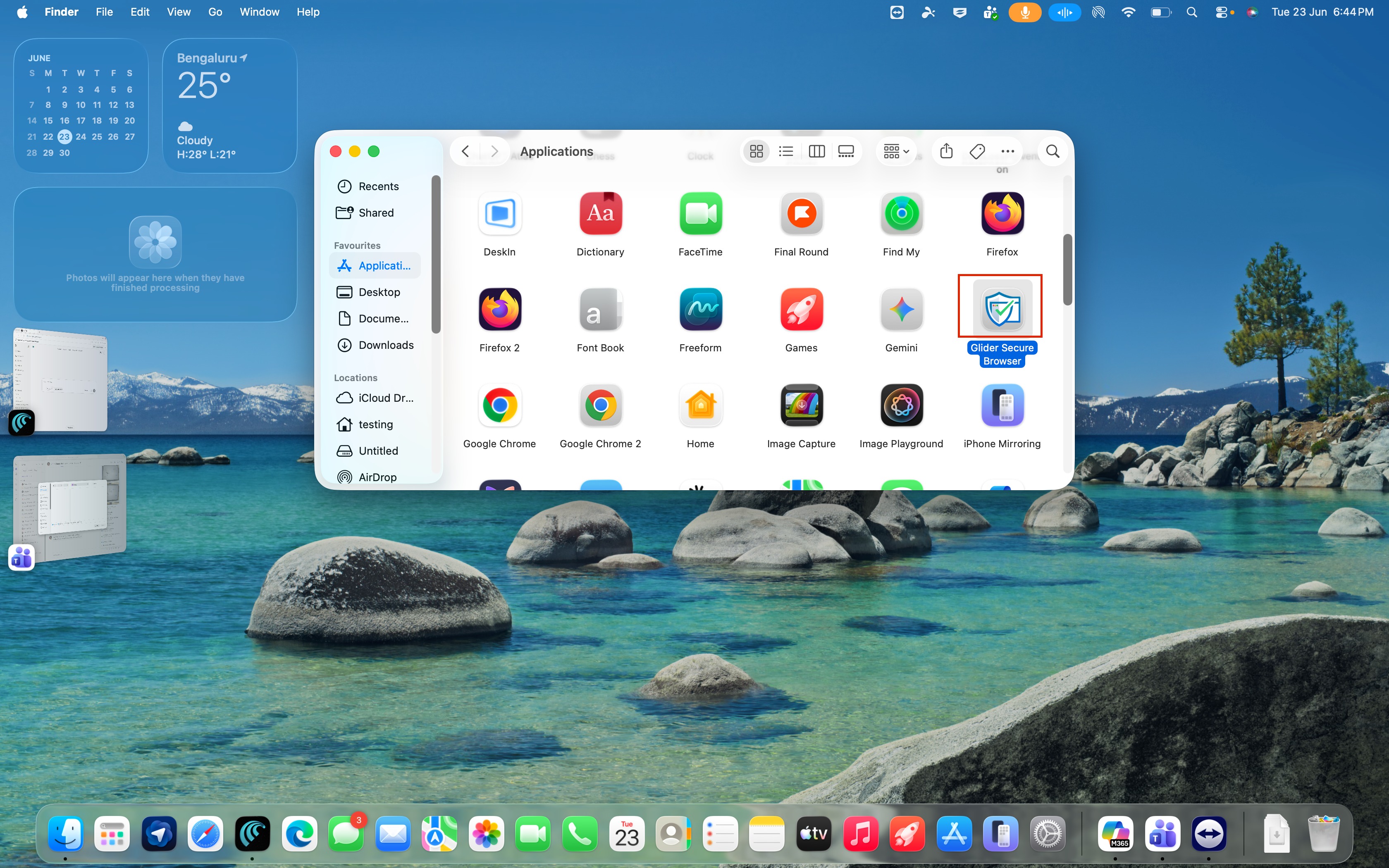
Drag Glider Safe Browser (GSB) to the Trash.
Alternatively:
- Right-click the application.
- Select Move to Bin.
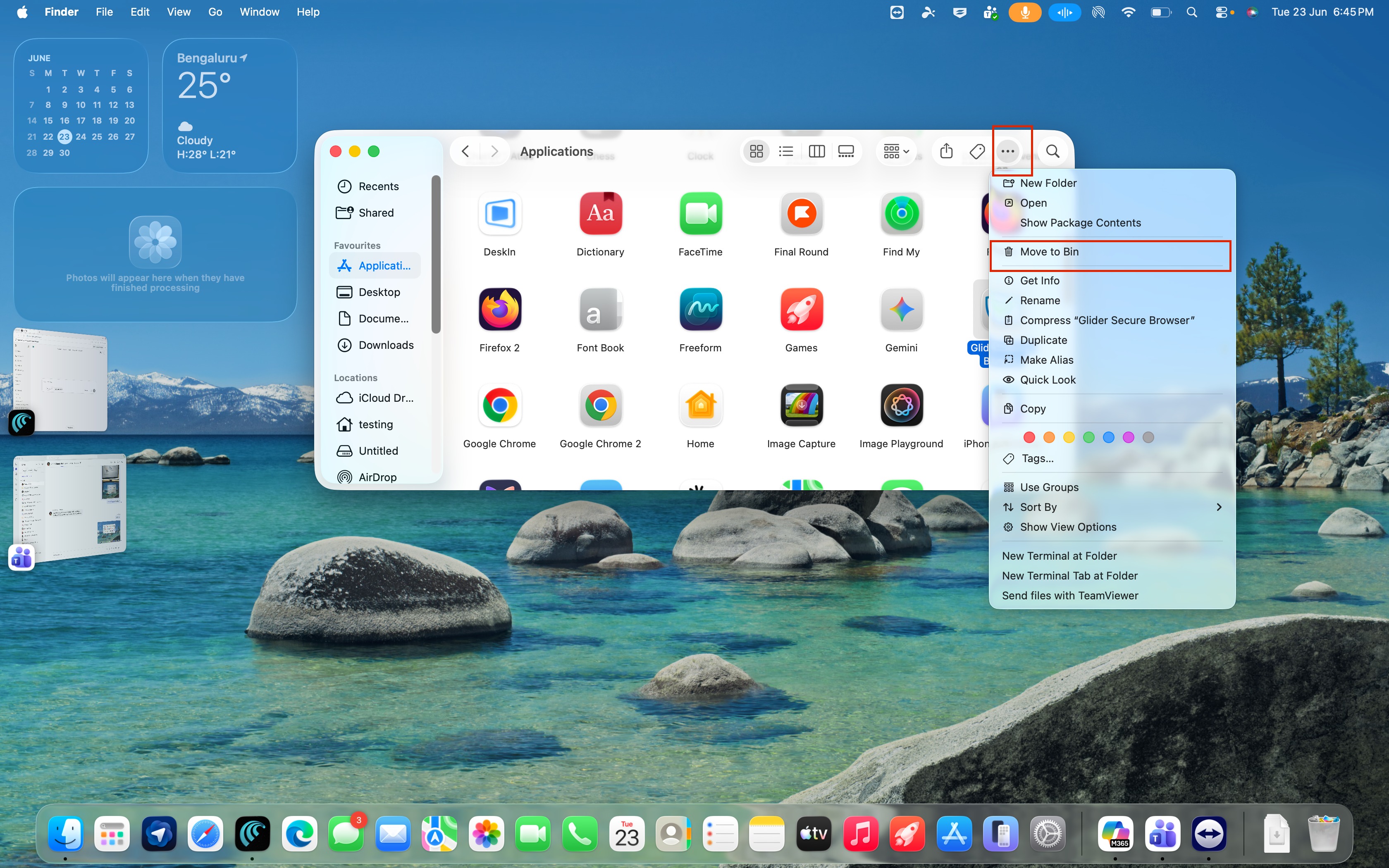
To permanently remove GSB:
- Open Bin in Finder.
- Select Empty Option.
- Confirm the action when prompted.

To confirm that GSB has been removed:
- Open Finder.
- Navigate to Applications.
- Verify that Glider Safe Browser (GSB) is no longer listed.
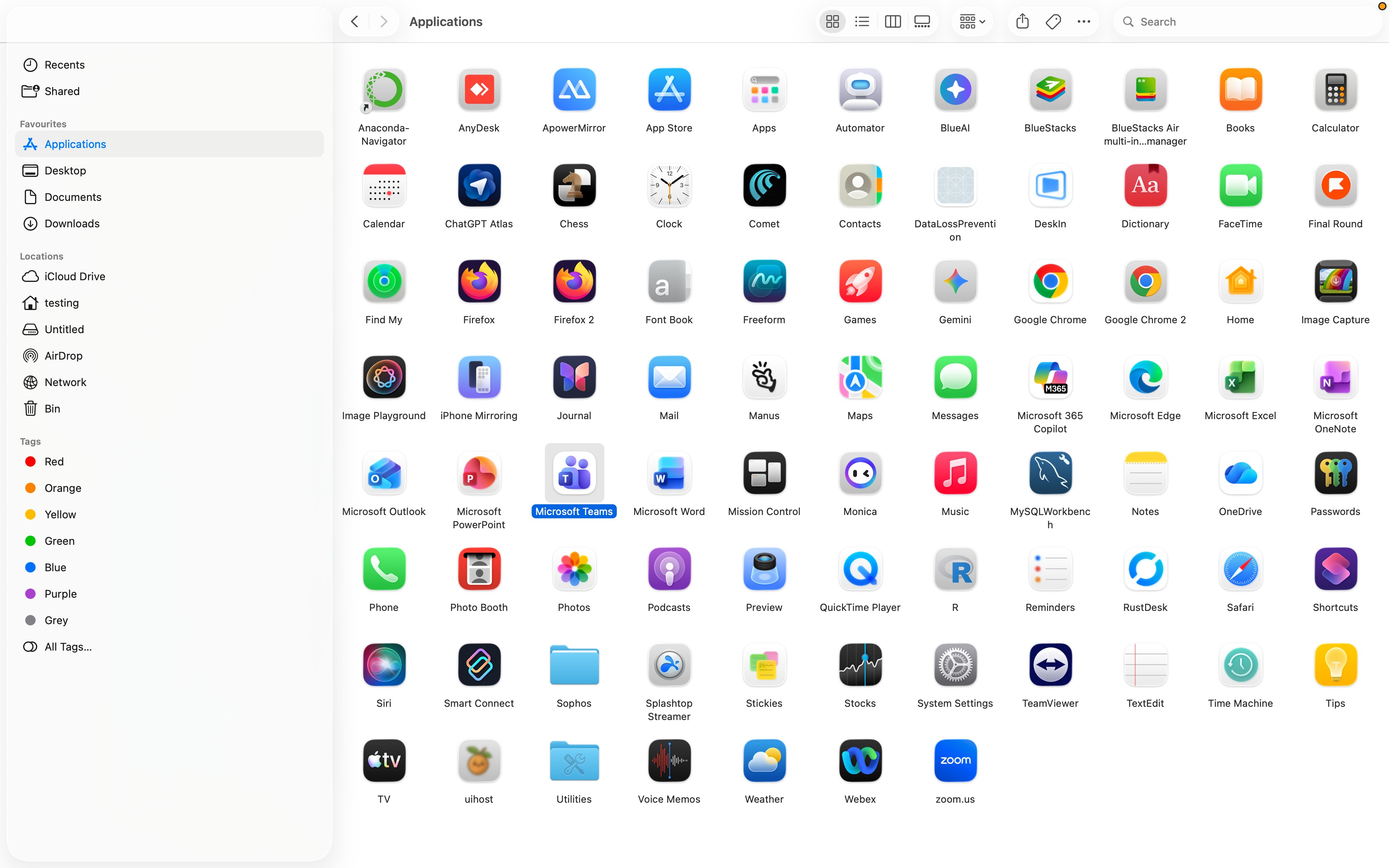
In most cases, moving GSB to the Trash completely removes the application.
If your organization requires complete cleanup of application-related files, you may also remove associated application support files.
- Open Finder.
- Click Go in the menu bar.
- Select Go to Folder.
- Enter:
~/Library
- Click Go.
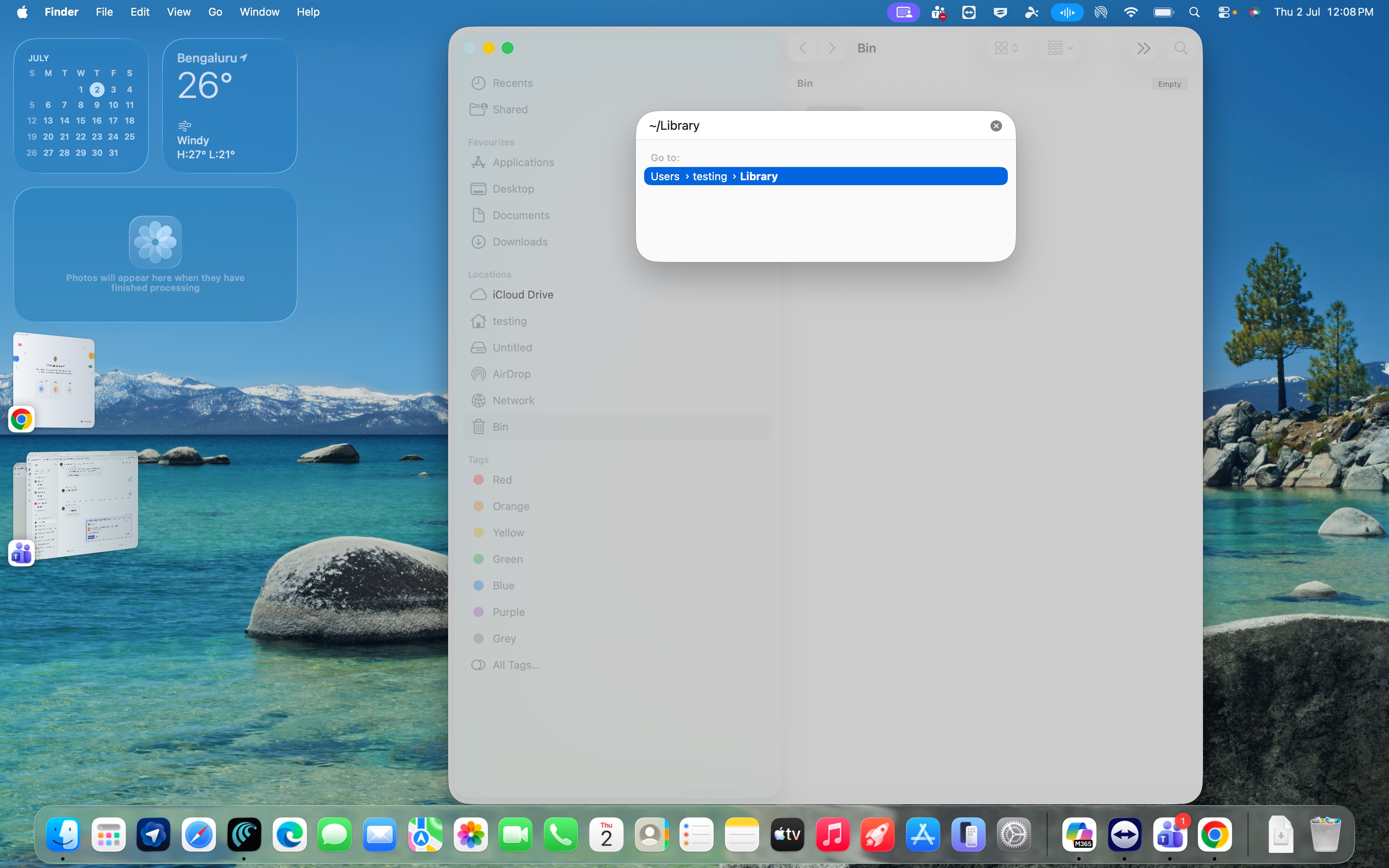
Depending on the installation, application-related files may exist in locations such as:
~/Library/Application Support/
~/Library/Caches/
~/Library/Preferences/
~/Library/Logs/
Remove only files and folders specifically associated with Glider Safe Browser (GSB).
Note: Removing files from the Library folder should only be performed by users familiar with macOS file management.
If macOS displays a message indicating that the application is in use:
- Ensure GSB is completely closed.
- Open Activity Monitor.
- Search for any running GSB processes.
- Select the process.
- Click Force Quit.
- Attempt the removal again.
If macOS prevents removal:
- Verify that you are logged in using an administrator account.
- Enter administrator credentials when prompted.
- Contact your organization's IT administrator if restrictions are enforced through device management policies.
If GSB still appears in Launchpad or Finder:
- Restart your Mac.
- Refresh Finder.
- Verify that the Trash has been emptied.
- Check the Applications folder again.
No. Removing Glider Safe Browser (GSB) only removes the application from your Mac and does not affect records stored on the Glider platform.
Yes. You can reinstall the latest version of Glider Safe Browser (GSB) at any time using the official installation package provided Glider.
If you encounter issues uninstalling Glider Safe Browser (GSB), contact Glider's support team and provide:
- macOS version
- Device model
- GSB version (if known)
- Any error messages displayed during removal
Providing this information will help expedite troubleshooting and resolution.
Was this article helpful?
That’s Great!
Thank you for your feedback
Sorry! We couldn't be helpful
Thank you for your feedback
Feedback sent
We appreciate your effort and will try to fix the article