Glider Safe Browser (GSB) is a secure browser designed to provide a controlled AI Interview / Live Interview / Assessment environment on macOS devices.
Key features:
- Restricts access to unauthorized applications and websites during an AI Interview / Live Interview / Assessment.
- Helps prevent navigation away from the AI Interview / Live Interview / Assessment window.
- Creates a secure testing environment for online examinations and AI Interview / Live Interview / Assessment.
- Supports proctored and non-proctored AI Interview / Live Interview / Assessment workflows.
Before installing Glider Safe Browser (GSB), ensure your Mac meets the following requirements:
- macOS 10.14 (Mojave) or later
- Recommended: Latest available macOS version supported by your device
Download the latest GSB installation package (GliderSafeBrowser_*.dmg) from the AI Interview / Live Interview / Assessment invitation email or the official download page provided by your organization.
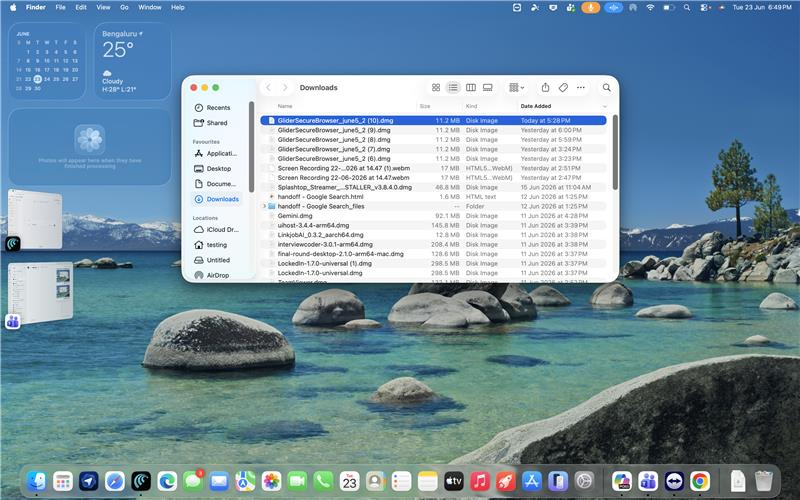
Locate the downloaded GliderSafeBrowser_*.dmg file in your Downloads folder.
Double-click the file to open it.
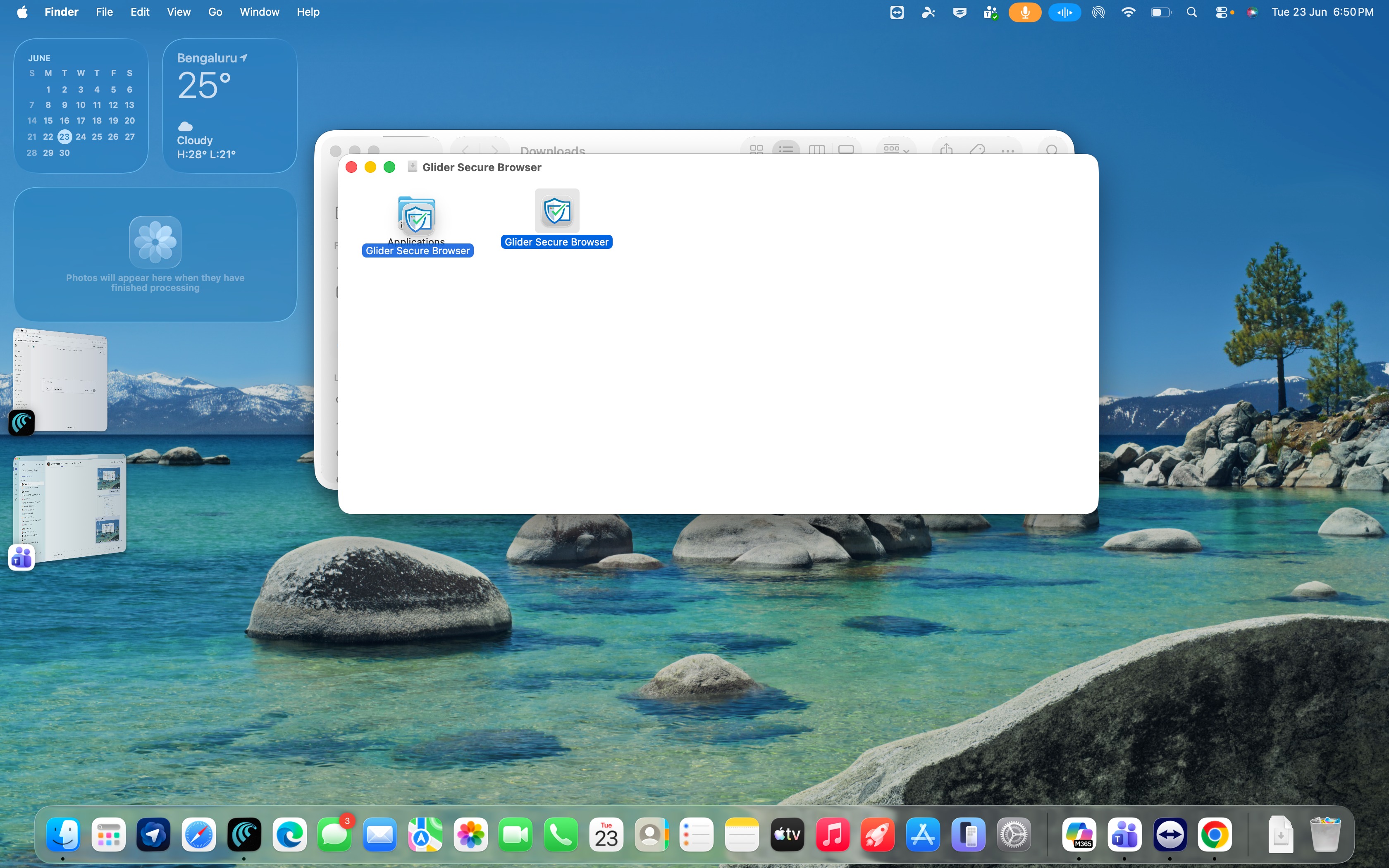
A Finder window will open displaying the Glider Safe Browser (GSB) application and the Applications folder.
Drag the GSB icon onto the Applications folder.
This copies the application to your Mac's Applications directory.
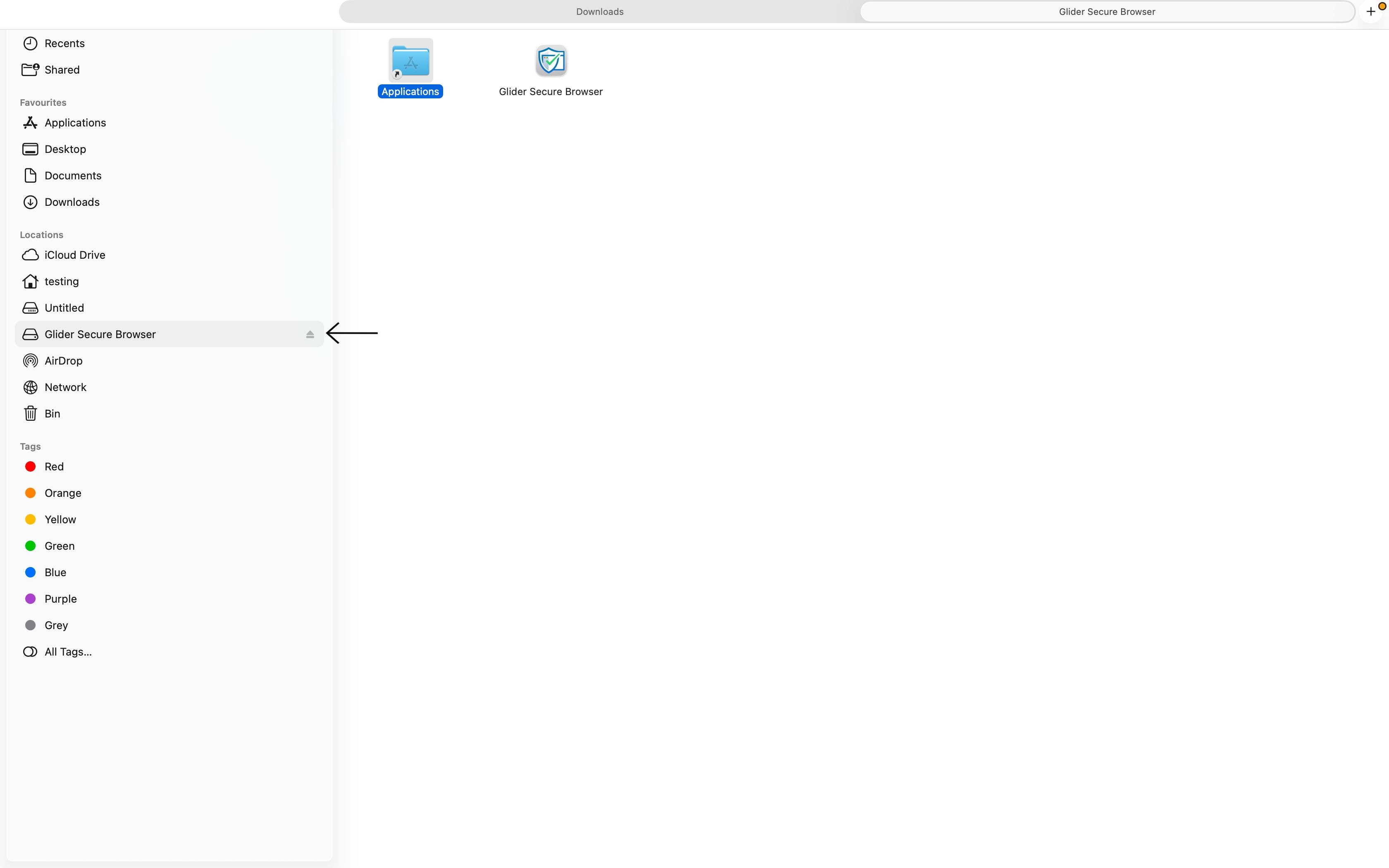
After the copy process is complete:
- Open Finder.
- Locate the mounted GSB installer in the sidebar.
- Click on the eject icon on
This removes the mounted disk image from your system.
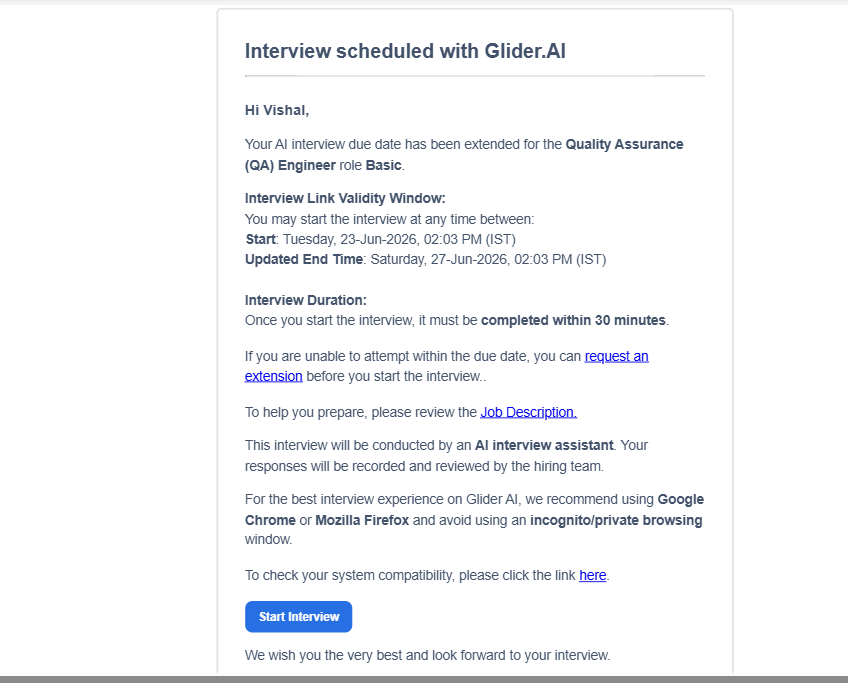
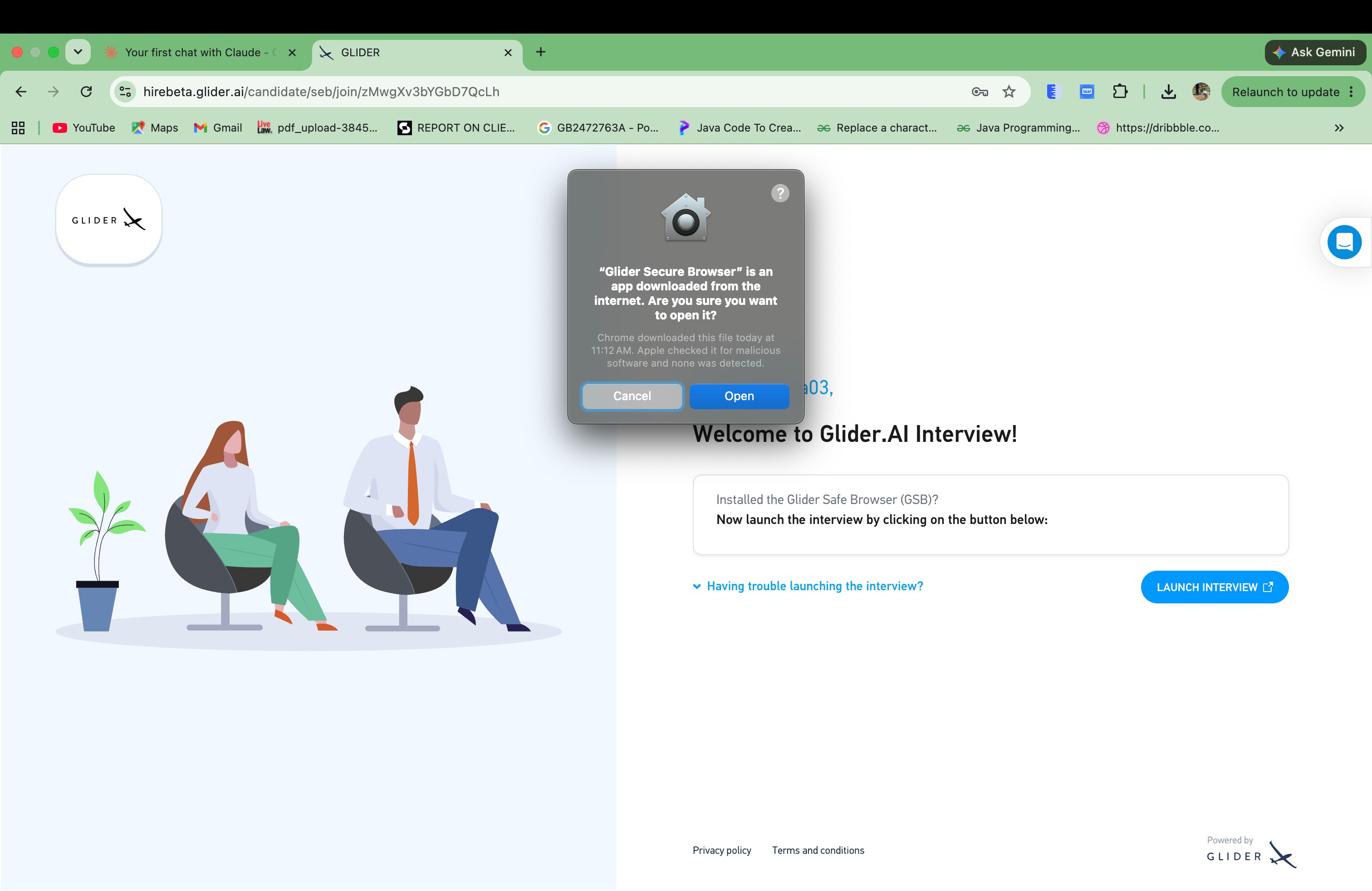
To launch GSB, click the AI Interview / Live Interview / Assessment link provided to you in invition email.
The first time GSB is launched, macOS may display a security warning indicating that the application was downloaded from the internet.
Since GSB was obtained from an authorized source, click Open to continue.
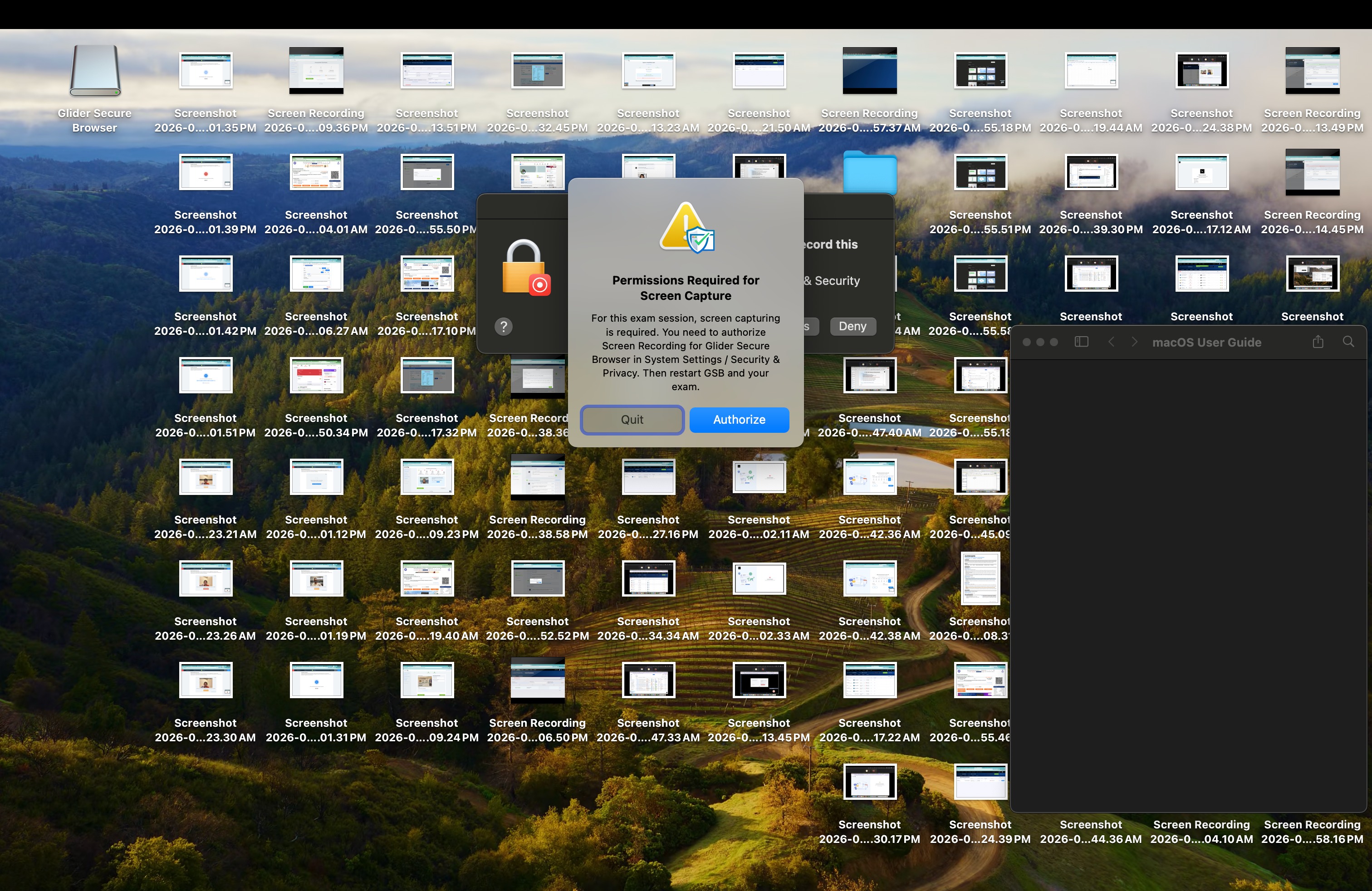
Depending on the AI Interview / Live Interview / Assessment configuration, GSB may require permissions such as:
- Camera access
- Microphone access
- Screen recording access
When prompted, grant the required permissions to ensure that all AI Interview / Live Interview / Assessment features function correctly.
Once GSB is installed and all required permissions have been granted:
- Open the AI Interview / Live Interview / Assessment link.
- Launch the test.
- Allow GSB to start.
- Follow any on-screen instructions provided by the AI Interview / Live Interview / Assessment platform.
GSB may restrict access to other applications and system functions while the AI Interview / Live Interview / Assessment is in progress.
Before starting an AI Interview / Live Interview / Assessment:
✅ Ensure you have a stable internet connection.
✅ Close unnecessary applications.
✅ Save any ongoing work.
✅ Install all required macOS updates before the AI Interview / Live Interview / Assessment day.
✅ Verify that camera and microphone permissions have been granted if required.
If GSB does not launch:
- Confirm that it is installed in the Applications folder.
- Verify that the download completed successfully.
- Restart your Mac and try again.
If macOS continues to block GSB:
- Open System Settings (or System Preferences).
- Navigate to Privacy & Security.
- Locate the security message related to GSB.
- Select Open Anyway if available.
If the AI Interview / Live Interview / Assessment fails to launch:
- Verify your internet connection.
- Ensure all required permissions have been granted.
- Confirm that you are using the latest version of GSB.
- Contact Glider support if the issue persists.
If you encounter installation or launch issues, contact your Glider's support team and provide:
- macOS version
- Device model
- GSB version (if available)
- Any error messages displayed
This information will help expedite troubleshooting and resolution.
Was this article helpful?
That’s Great!
Thank you for your feedback
Sorry! We couldn't be helpful
Thank you for your feedback
Feedback sent
We appreciate your effort and will try to fix the article