Glider Safe Browser (GSB) is a secure browser designed to convert any Windows system into a controlled testing environment.
Key features:
Prevents users from navigating away from the AI Interview / Live Interview / Assessment window until the session is completed.
Restricts access to unauthorized websites, applications, and system resources.
Automatically closes prohibited applications and browser instances before launching the AI Interview / Live Interview / Assessment.
Helps maintain a secure and distraction-free testing environment.
Before starting the installation, ensure that you have downloaded the Glider Safe Browser (GSB) installation file (GSB_Dev_v_*_x64_Setup.msi) from the AI Interview / Live Interview / Assessment invitation email or the provided download link.
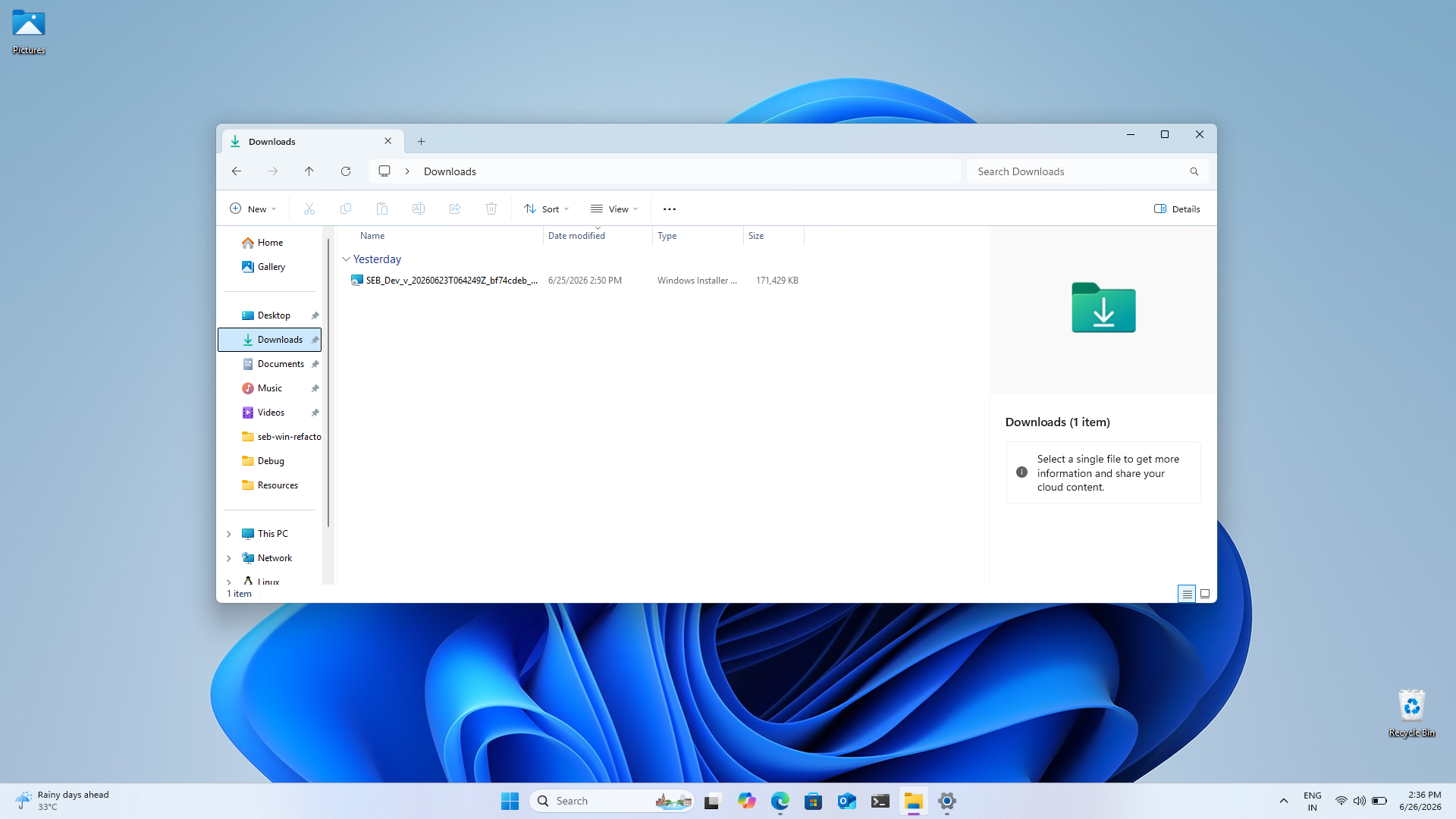
Locate the downloaded GSB_Dev_v_*_x64_Setup.msi file and double-click it to start the installation process.
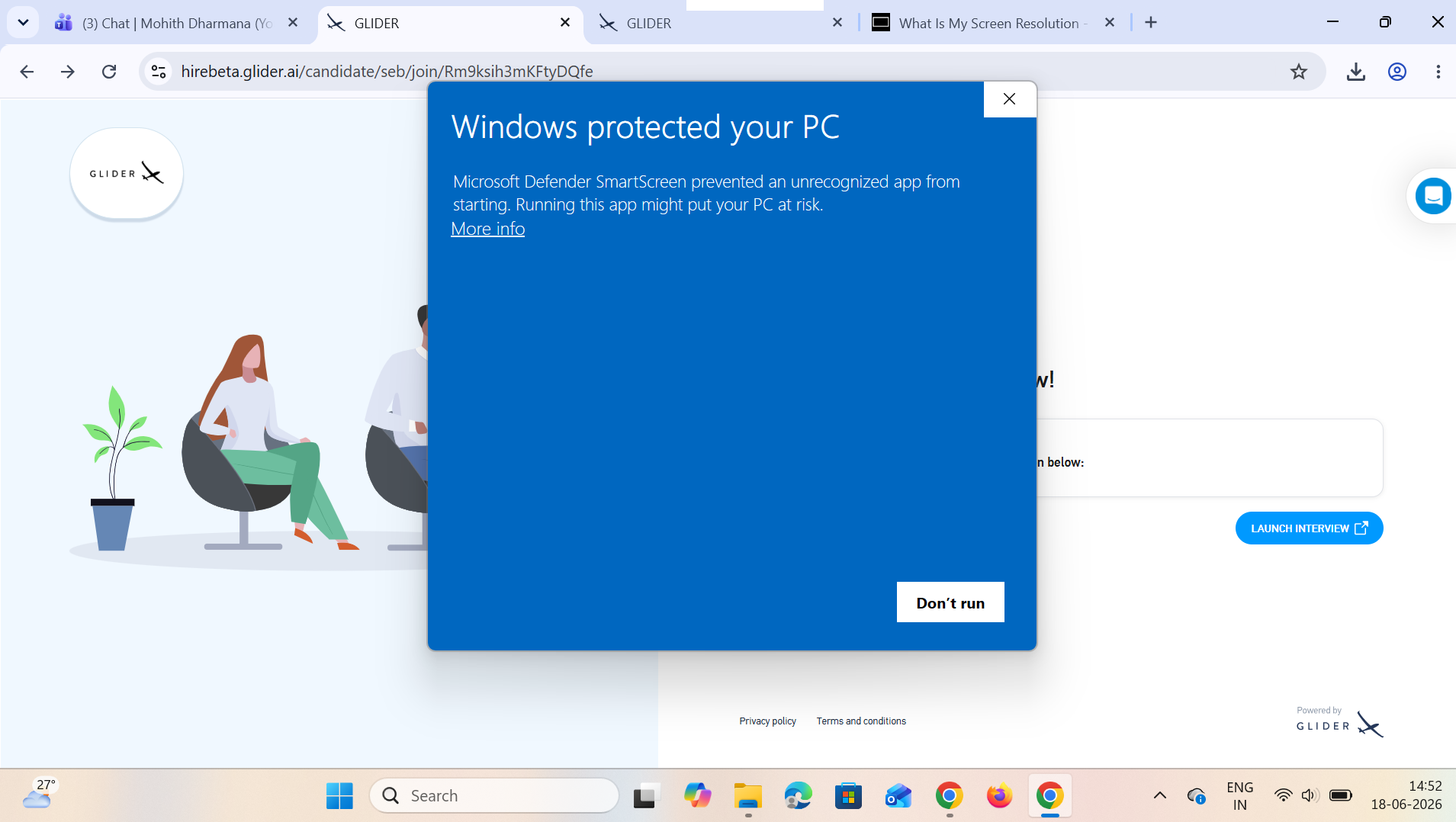
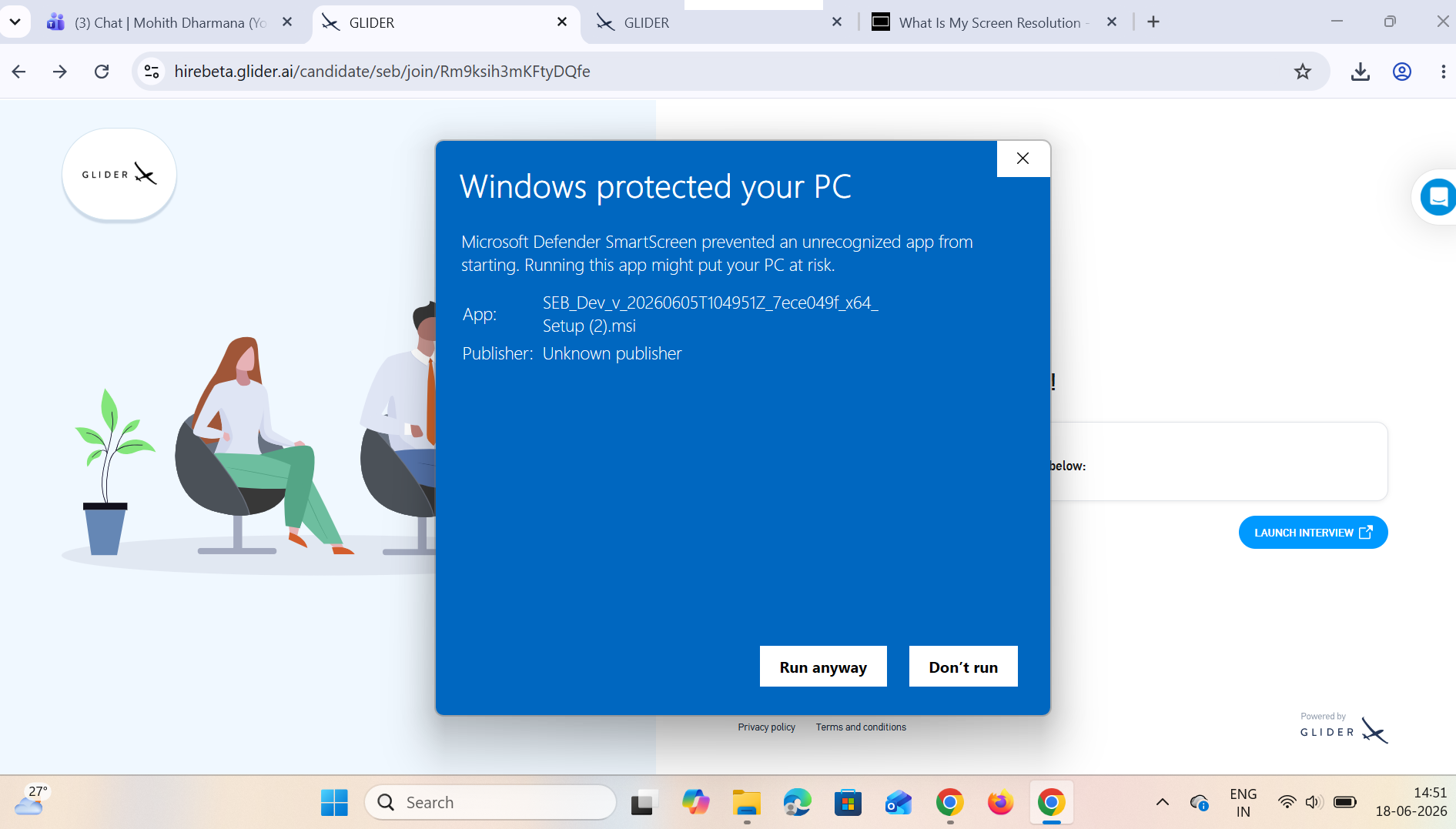
If you see the below SmartScreen check popup, click on More Info, then click Run Anyway.
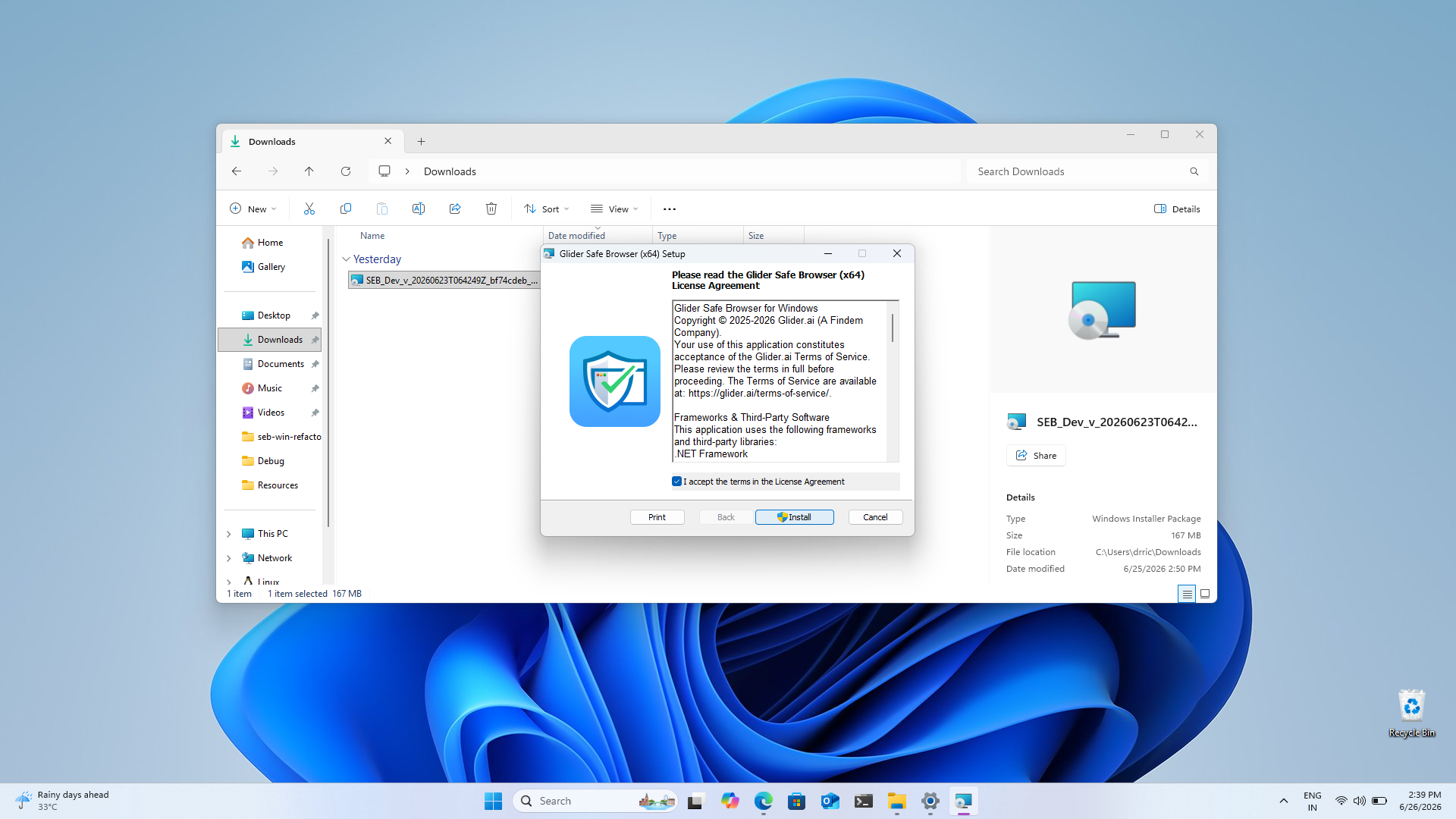
When the installer window appears, click Install.
Wait for the installation process to finish.
Once installation is complete, click Close.
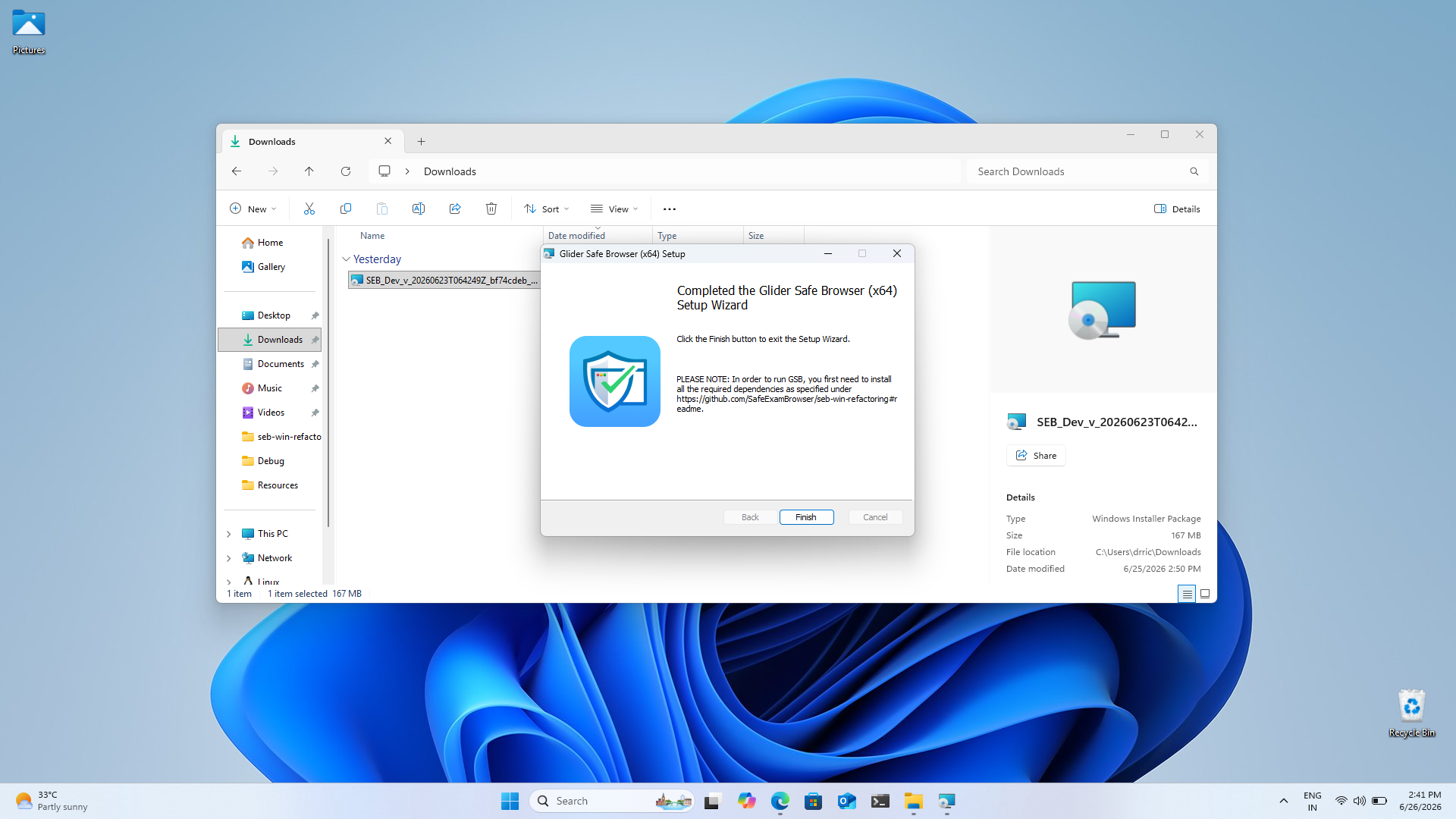
After installation, click the AI Interview / Live Interview / Assessment link provided to you.
The AI Interview / Live Interview / Assessment will automatically open in Glider Safe Browser (GSB).
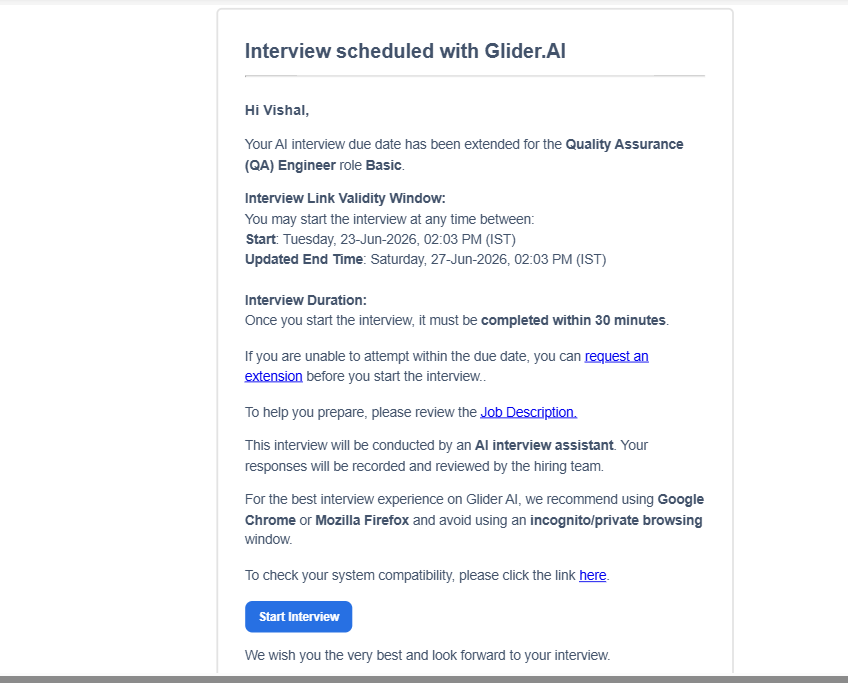
When you launch an AI Interview / Live Interview / Assessment using GSB:
All open browsers and restricted applications may be automatically closed.
GSB will request permission to close any active applications that could interfere with the secure testing environment.
A notification will appear displaying the applications that need to be closed before the browser can launch successfully.
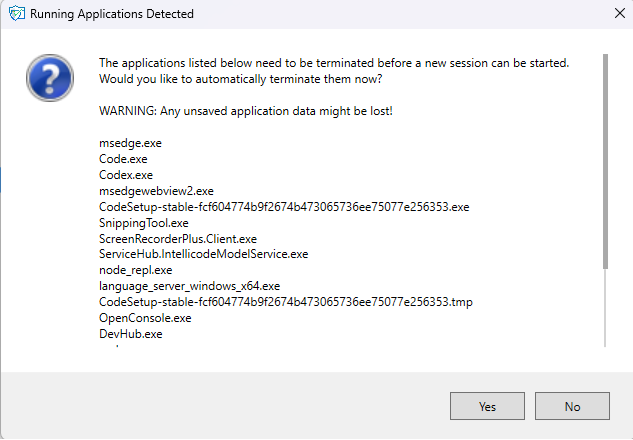
Click OK to allow GSB to close the listed applications and continue launching the AI Interview / Live Interview / Assessment.
In some cases, GSB may be unable to close certain applications automatically.
When this happens, you will be prompted to manually close them.
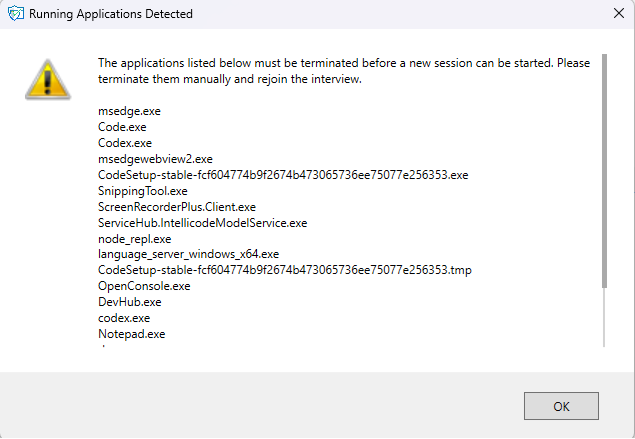
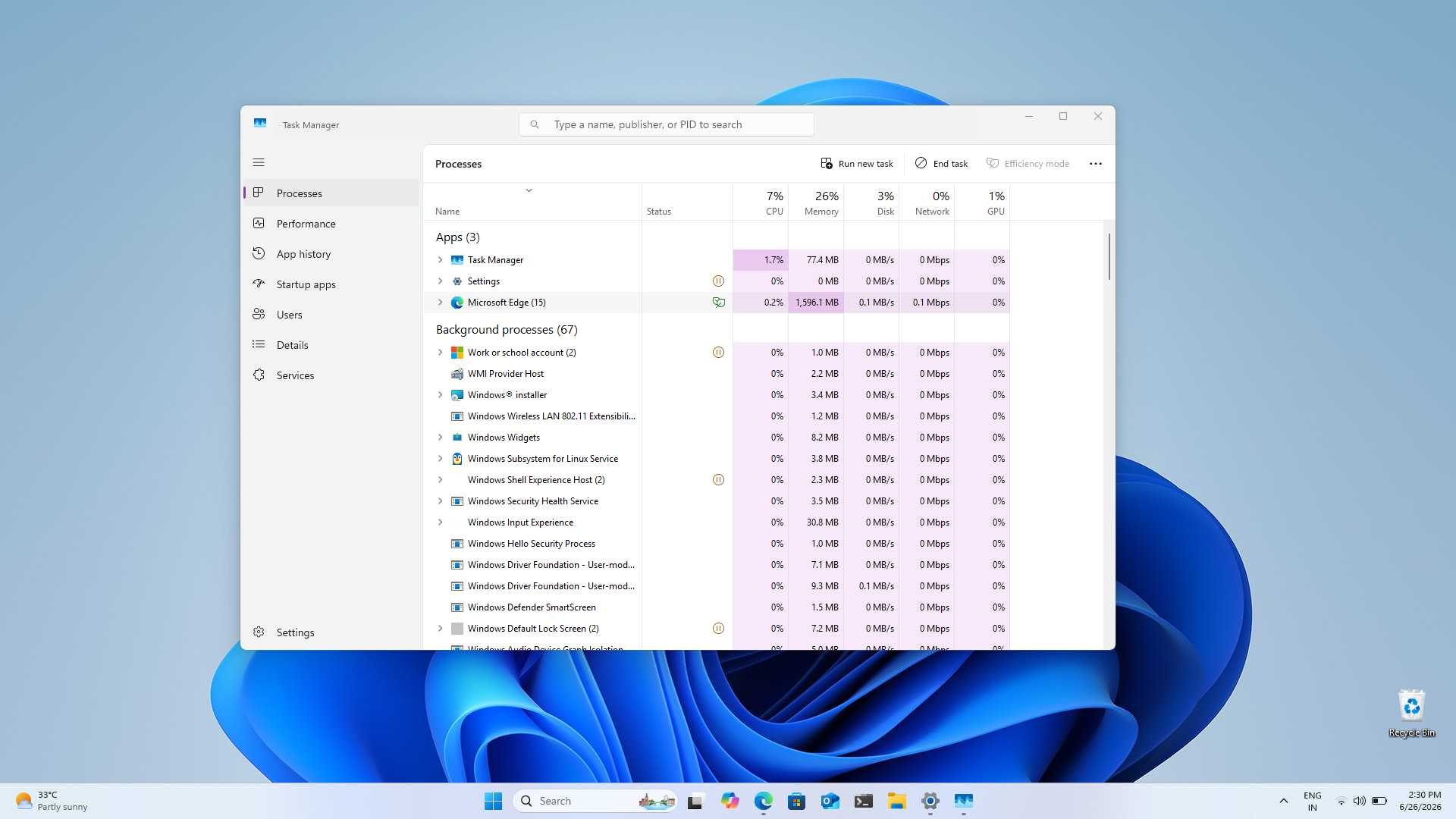
Open Task Manager.
Locate the applications listed by GSB.
Select each application.
Click End Task.
To ensure a smooth AI Interview / Live Interview / Assessment experience, verify the following before launching GSB:
No network restrictions or firewall policies are blocking access to the Glider platform.
Your antivirus software allows GSB to run without interruption.
You have Administrator privileges on the system.
You are not logged in as a Guest User.
Windows is fully updated with no pending updates or installations.
Glider Safe Browser (GSB) supports:
Windows 10
Windows 11
Later supported Windows versions
GSB requires Microsoft .NET components that are installed automatically when necessary.
Ensure that your system has at least:
- 400 MB of free disk space available on the default installation drive.
Once the AI Interview / Live Interview / Assessment launches successfully:
You will not be able to switch to other applications until the AI Interview / Live Interview / Assessment is completed.
Previously running browsers and restricted applications will remain inaccessible.
Navigation outside the AI Interview / Live Interview / Assessment environment is blocked.
GSB does not provide standard browser navigation controls.
If enabled by the AI Interview / Live Interview / Assessment administrator:
Use the Reload button available in the interface, or
Press F5 to refresh the page.
Avoid pressing F5 unnecessarily during an AI Interview / Live Interview / Assessment.
GSB restricts screen sharing and display mirroring functionality.
If your computer is connected to another display or screen-sharing device before launching GSB, the browser may prevent the AI Interview / Live Interview / Assessment from starting until the connection is removed.
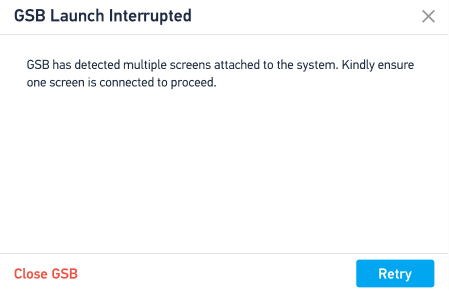
Connecting an external display, projector, screen-sharing cable, or mirroring device during an active AI Interview / Live Interview / Assessment may result in AI Interview / Live Interview / Assessment termination based on the configured security policies.
Before starting your AI Interview / Live Interview / Assessment:
✅ Close unnecessary applications manually.
✅ Save any ongoing work in other applications.
✅ Ensure a stable internet connection.
✅ Disconnect external displays if not required.
✅ Temporarily pause software that may interfere with secure browser operation (if permitted by your organization's policy).
✅ Launch the AI Interview / Live Interview / Assessment only after completing all prerequisite checks.
If you encounter installation or launch issues:
Restart your computer.
Run GSB as an Administrator.
Verify that antivirus or endpoint security software is not blocking GSB.
Ensure all required applications listed by GSB are closed.
Contact Glider support team for assistance.
Was this article helpful?
That’s Great!
Thank you for your feedback
Sorry! We couldn't be helpful
Thank you for your feedback
Feedback sent
We appreciate your effort and will try to fix the article