Create the list of questions you wish to ask candidates before the interview starts so that you are all set, ask the right questions, and also avoid the hassle of scouting for questions when the interview is on. Creating this task list will also help other interviewers in your team or the organization and also make the evaluation consistent.
To create your task list:
- Navigate to Live Interview and click on Manage Tasks button on the Interview dashboard.

- Click on 'Add New' on top.

- Provide the name of the template. Set the sharing options and choose Feedback Rubric.

- To add questions to the task list, the questions can be searched from Glider's repository by keywords.

- The question of your choice can be added to the task list by clicking on the Create your own button.
- You can also choose to create your own Coding or Open response questions and add them to the task list.
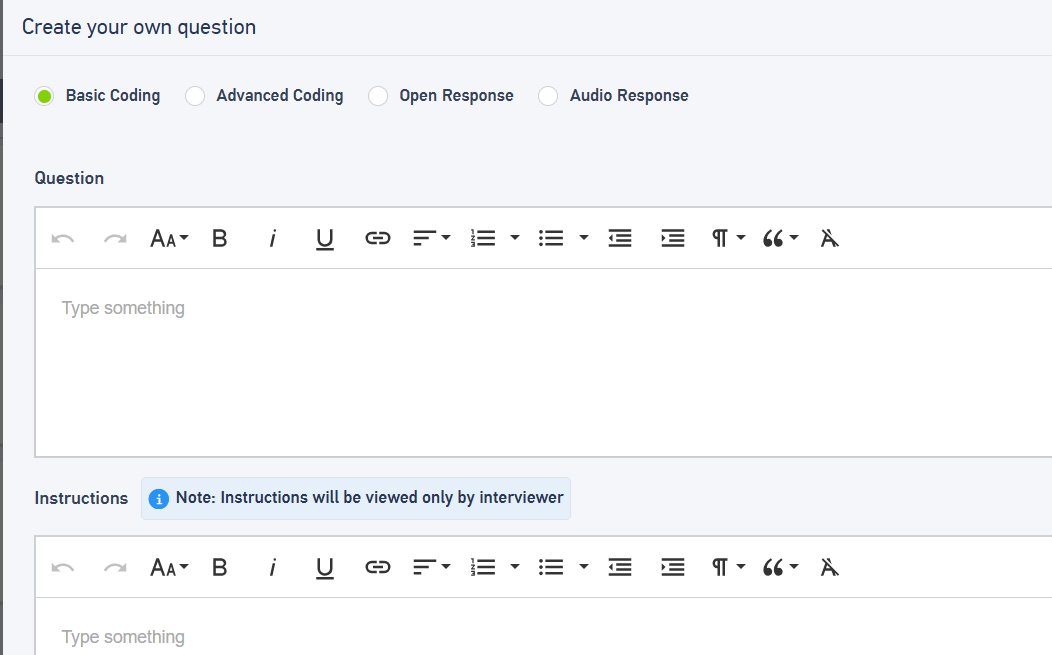
- You can also create the questions using AI, where you would need to upload the Job descriptions and AI would be suggesting you questions based on the skills mentioned in the JD - (For using this feature you would need to have AI guided interviews subscription)
- Once you have sufficient questions added, click on Save as template to save the list.
- This list will now be available in the Saved list from which you can choose questions to ask candidates.
Choosing questions from the list
Once you are connected with the candidate on the interview, if you want to choose a question from a task list:
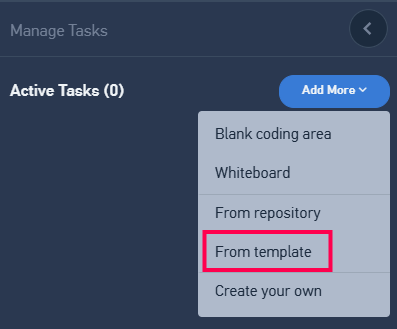
- Select the task list 'From Template'
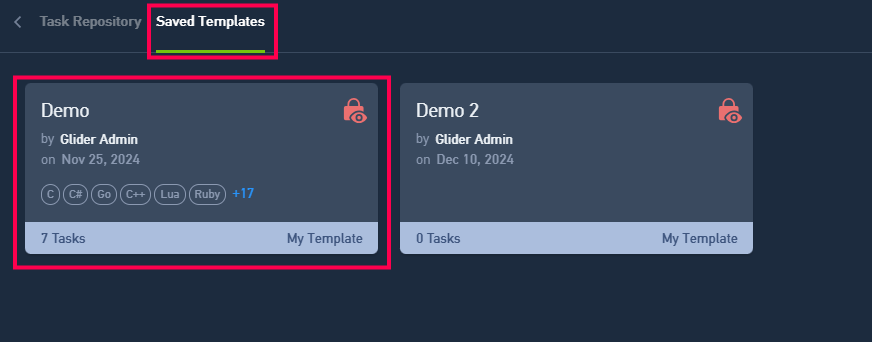
- Click on Saved Template
- You will see a list of all your saved templates. Please click on the one you want to use.
- Then all the questions in the task list will be listed.
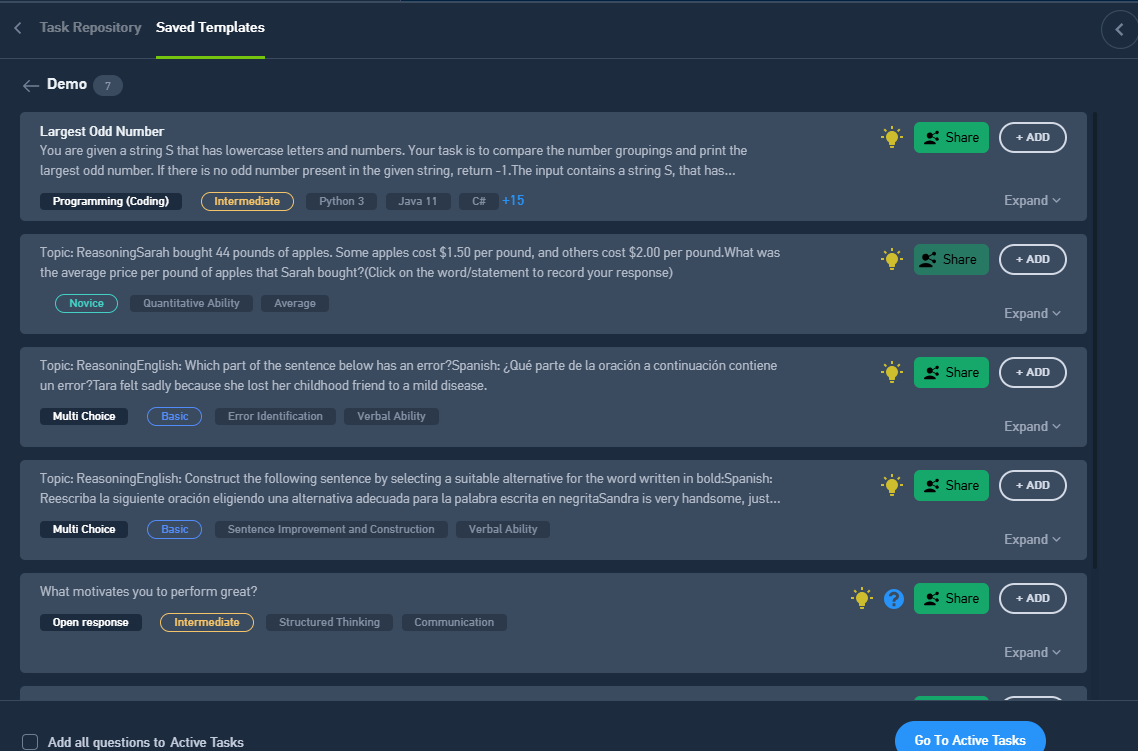
- Click on the Add button to add the question to the tasks.
- You can also add all the questions by clicking on Add all questions to Active Tasks and then share.
- Also, you can click on Share as well from this menu, allowing the candidate to view the question in the Task tab.
Was this article helpful?
That’s Great!
Thank you for your feedback
Sorry! We couldn't be helpful
Thank you for your feedback
Feedback sent
We appreciate your effort and will try to fix the article