Agentic AI
This manual provides a step-by-step guide for creating jobs, configuring interviews, and inviting candidates using the Agentic AI. This also consists of the steps that candidate need to follow to join the interview.
Step 1: Adding Jobs
1. Log in to Glider and navigate to the Live Interview Dashboard.
2. Click on 'Add Jobs'.
3. To create multiple jobs simultaneously, select 'Bulk Jobs' and upload the prepared job file. 
4. Once clicked on ‘Add Jobs’, you will be redirected to the 'Summary' tab.
Step 2: Summary Tab
1. Provide the Job Description by either pasting the text or uploading the JD file.
2. Click 'Fetch Data' to automatically extract job details.
3. Job Title, Job Location, and Language are optional fields.
4. Enter a unique Job ID.
5. Skills will be extracted from the JD automatically; you may add or remove them as needed.
6. Assign recruiters (up to three) who will have permission to make changes to the interview.
7. Click 'Next' to proceed. 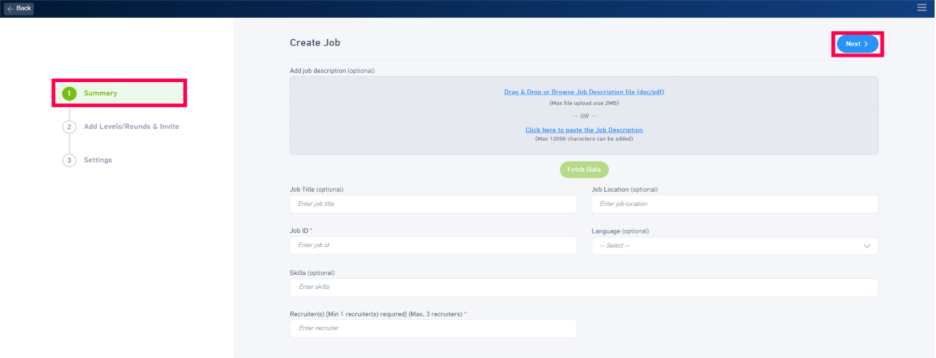
Step 3: Configuring Rounds and Panels
1. Add or remove interview rounds as required.
2. Assign panel members for each round. (Optional)
3. The feedback template for Agentic AI will default to 'AI Interview'. You can create a new template or keep it as is
4. Select a Task Template if required. (Optional)
5. To configure Agentic AI settings, click the settings icon next to each round. 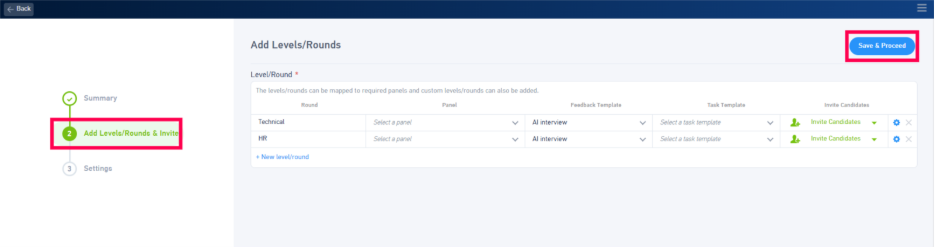
Step 4: Interview Configuration
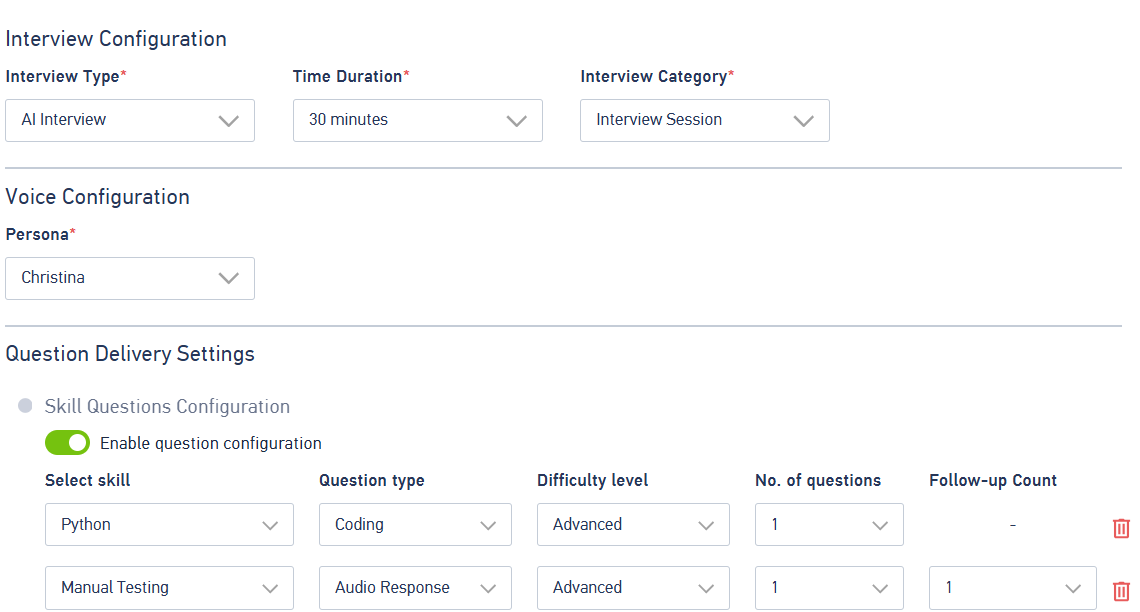
1. Select 'AI Interview' as the Interview Type.
2. Choose the interview duration (30 minutes, 45 minutes, or 1 hour).
3. Select the Interview Category
4. Select the preferred voice of AI bot (Female or Male)
5. Under 'Question Delivery Settings:
- Skills from the JD will be displayed automatically.
- You can select additional skills that are fetched by clicking on Add more skills as needed.
- Select the Question Type (True/False, Coding, Audio Response, etc.).
- Choose the Difficulty Level (Novice, Basic, Intermediate, Advanced, Expert).
- Define the number of questions per skill.
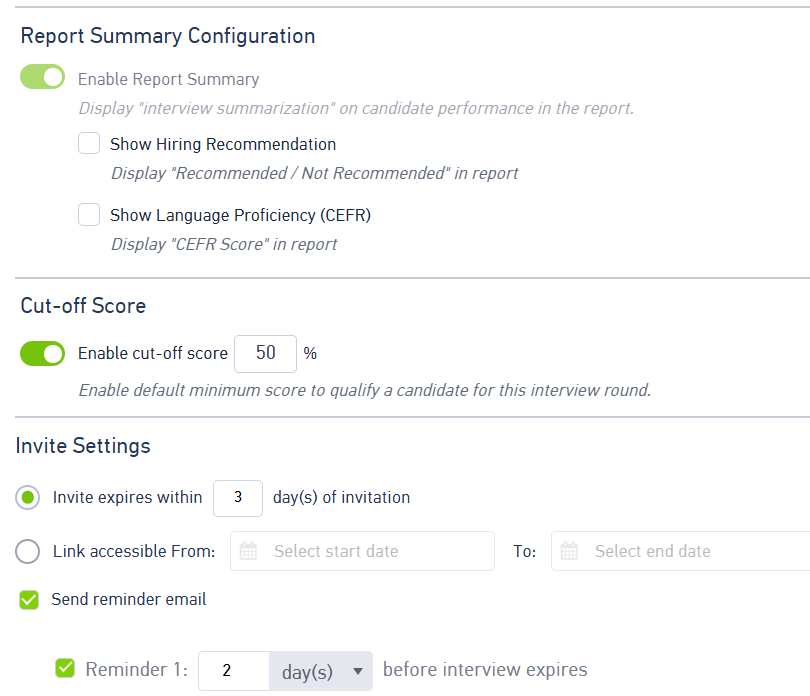
5. AI Summarization: If this is enabled, AI will provide a summary based on the candidate’s performance
6. Enable show hiring recommendation: If this is enabled, the AI will show whether it recommends hiring the candidate or not.
7. Enable Language proficiency: This displays CEFR score in the report.
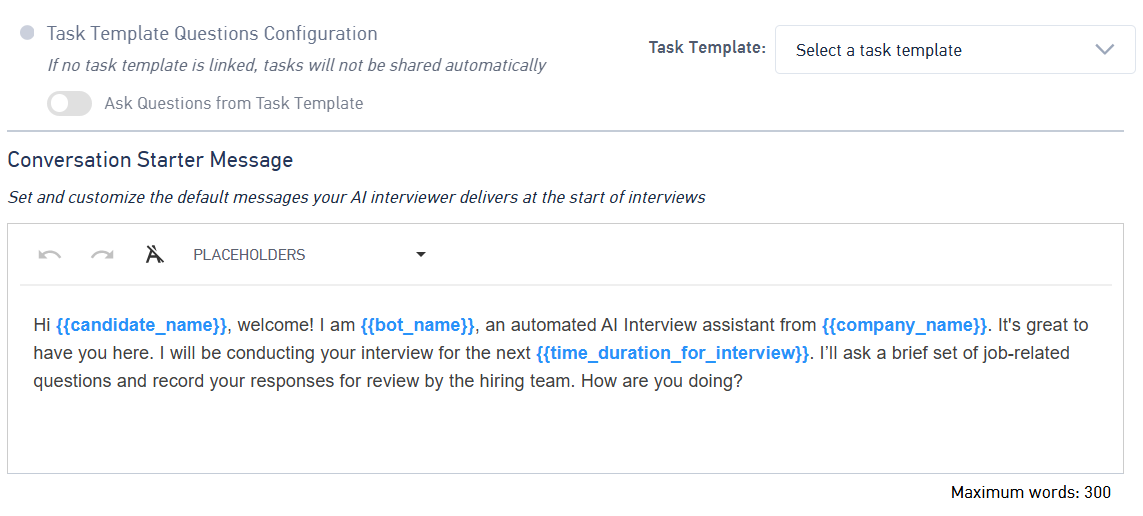
8. Conversational starting message: This will customize the default messages your AI interviewer delivers at the start of interviews
9. Public invite URL: The Public URL is generated for attempting the interviews. This is a publicly accessible URL which can be shared with the candidates.
10. Invite Settings: You can now add valid time durations while configuring the interview. Previously, you had to select a specific date and time to schedule an interview, but as per your request, it’s now possible to add flexible time slots instead.
By default, the interview link will remain valid for 3 days. However, you can modify the date and time duration as needed by navigating the settings option.
11. You will find the Invite settings option there. You can directly mention the number. Of days, you want the link to be valid. (By default, it will be 3 days.)
You can manually enter start date and end date with time.
12. You can also send a remainder emails to the candidates.
Step 5: Inviting Candidates
After the interview configuration is saved, candidates can be invited to participate.
Inviting Individual Candidates
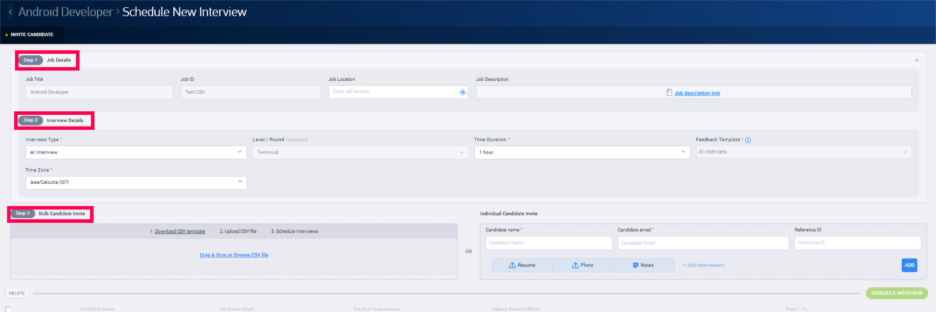
1. Job Details:
- Select or create the Job Title.
- (Optional) Enter the Job ID.
- (Optional) Specify the Job Location.
- (Optional) Upload or link the Job Description.
2. Interview Details:
- Select the Interview Type (e.g., Video Interview).
- (Optional) Specify the Interview Round or Level.
- Choose the appropriate Time Zone.
- Enable or disable DE&I settings.
- Select the Feedback Template.
3. Candidate Information:
- Enter Candidate Name and Email.
- (Optional) Upload Resume and Photo.
- Add Interviewers (Internal or External).
4. Click 'Schedule Interview' to confirm.
Inviting Candidates in Bulk
1. Download the CSV template provided.
2. Enter candidate details into the CSV file.
3. Upload the completed CSV file by browsing or using drag-and-drop.
4. Click 'Schedule Interviews' to complete the process for all listed candidates.
Joining Interviews & Candidate Onboarding
Candidate Onboarding
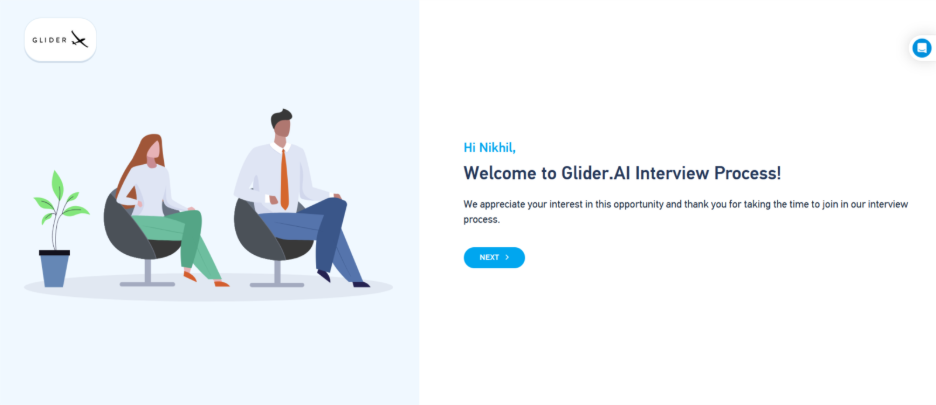
After clicking 'START INTERVIEW', the candidate must complete the onboarding process before entering the interview area. The steps include:
• Company Branding: Candidates will see company branding videos or images, if provided.
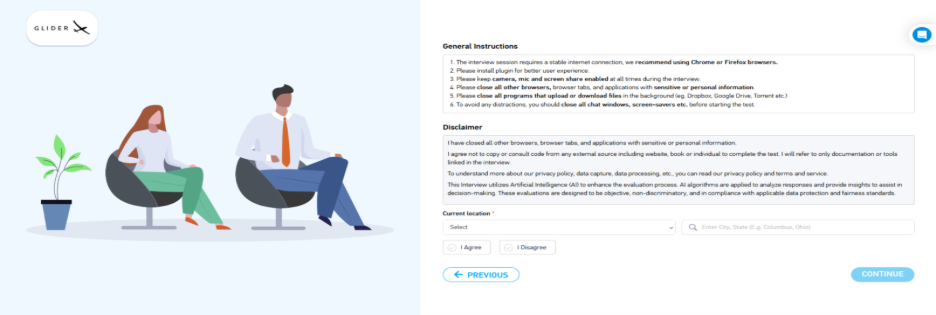
• General Instructions: Read the instructions, agree to the disclosure, and click 'Continue' to proceed.
- If the candidate does not agree to the disclosure, the interview will be terminated and the interviewer will be notified via email.
• System Setup:
- Install the Glider plugin to enable monitoring during the interview. This ensures activity tracking and reporting for the interviewer.
- Video Check: Grant camera access and confirm video functionality by clicking 'Yes, I look good'.
- Audio Check: Grant microphone access, select the correct device from the dropdown, speak to test, and confirm by clicking 'It’s moving'.
- Speaker Check: Play the test audio and confirm by clicking 'Yes, I can'.
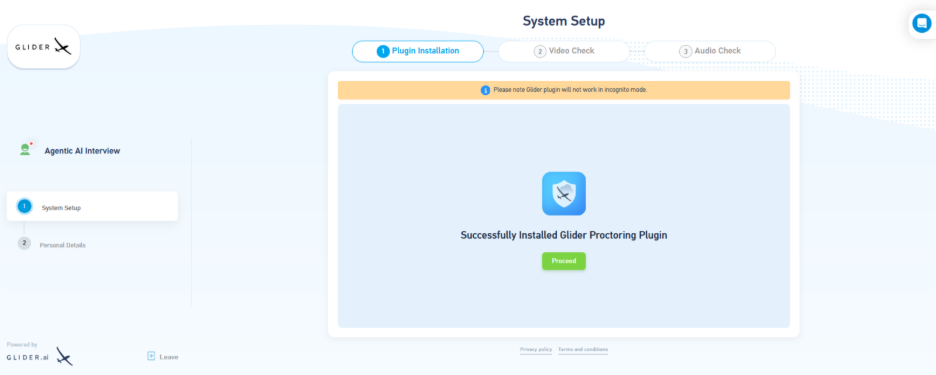
• Personal Details: Capture a picture and Photo ID for verification. 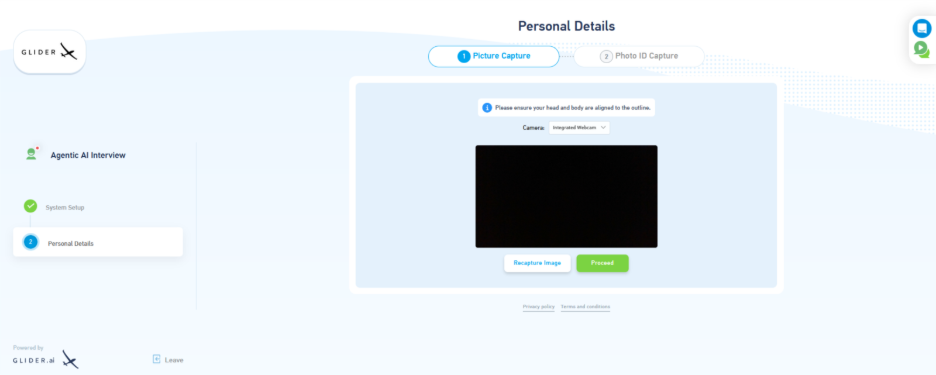
• Once all steps are completed, click 'Proceed' to enter the live interview area.
Once logged in, the candidate will have to share the screen, which is a mandatory step.
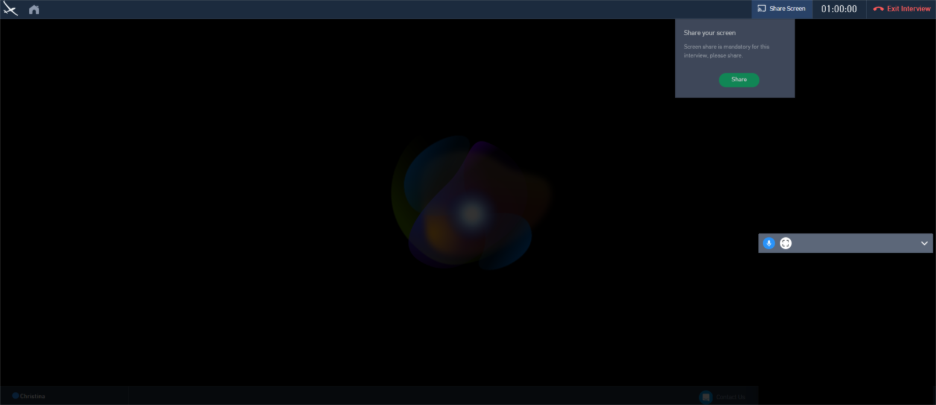
After that, the AI will start interviewing the candidate.
Was this article helpful?
That’s Great!
Thank you for your feedback
Sorry! We couldn't be helpful
Thank you for your feedback
Feedback sent
We appreciate your effort and will try to fix the article