If you wish to create an assessment that covers multiple skill sets, you can easily do so using the Question Library. Follow the steps below to create a customized assessment:
- Navigate to the Assessment Tab:
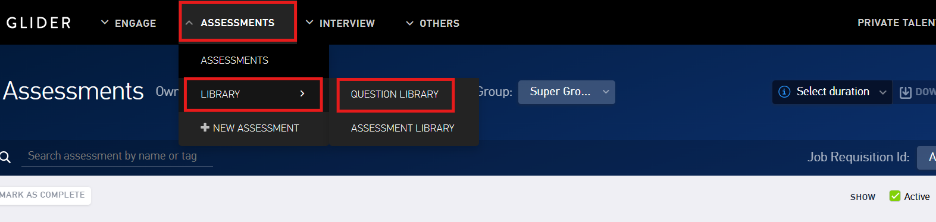
Begin by going to the Assessment tab on the platform. From there, select Library, and then click on Question Library.
- Access the Question Library Page:
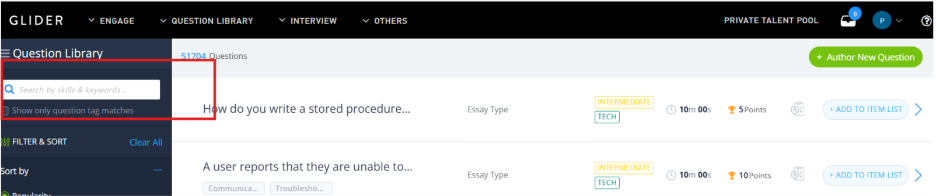
Upon clicking, you will be redirected to the Question Library page, where a wide range of pre-defined questions across various skill sets are available.
- Search for Relevant Skills:
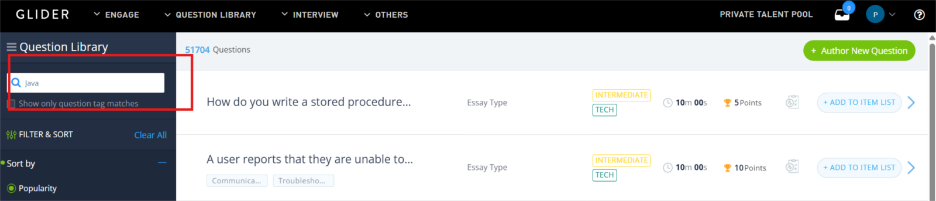
In the search bar provided on the Question Library page, type the skill or keyword you are looking for (e.g., Java, Data Analysis, Communication). Press Enter to view a list of all available questions related to the entered skill.
- Browse and Select Questions:
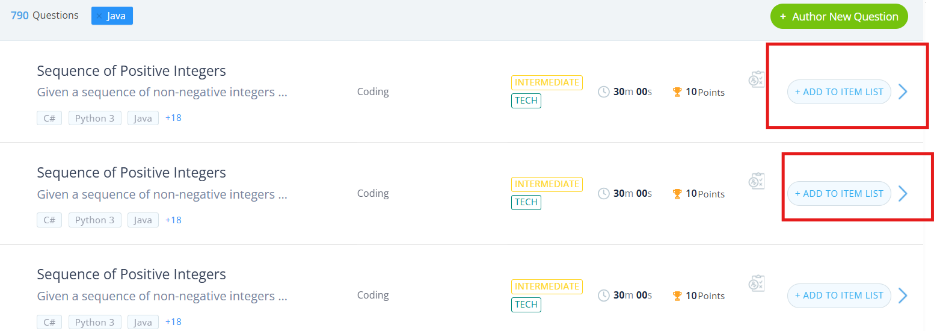
You can repeat this process for different skills to curate a diverse and comprehensive assessment.
- View Selected Questions:
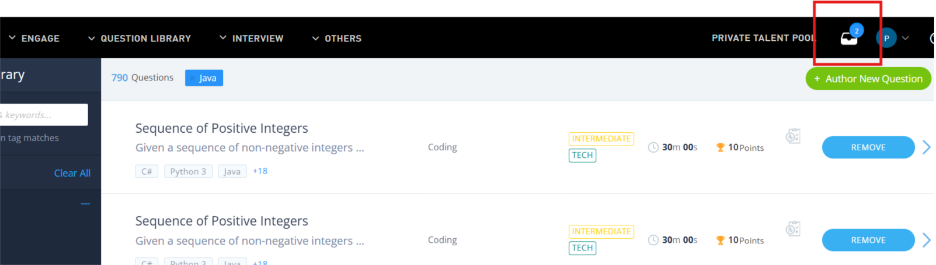
Once you’ve added questions, they will appear in the selection bucket at the top of the page (as shown in the reference image). This bucket shows all the questions you’ve chosen so far, across different skill categories.
- Create the Assessment:
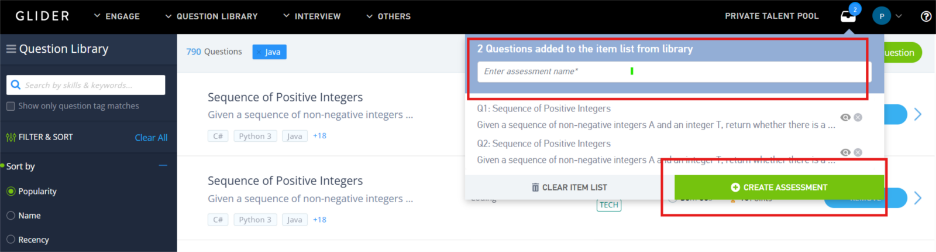
After finalizing your selection of questions, give your assessment a relevant name in the designated field. Once you are ready, click on the Create Assessment button to complete the process.
- Now fill up the summary details as shown here: Summary page
- Create or edit the questions again (IF required at this stage): Add/edit Questions
- Once you have added all your questions, you are ready to proceed to the next step, that is to configure how the assessment will be administered: Assessment Configuration
- Once you have saved your changes, you’re all set to invite the candidates for taking the assessment.: Inviting candidates
Was this article helpful?
That’s Great!
Thank you for your feedback
Sorry! We couldn't be helpful
Thank you for your feedback
Feedback sent
We appreciate your effort and will try to fix the article