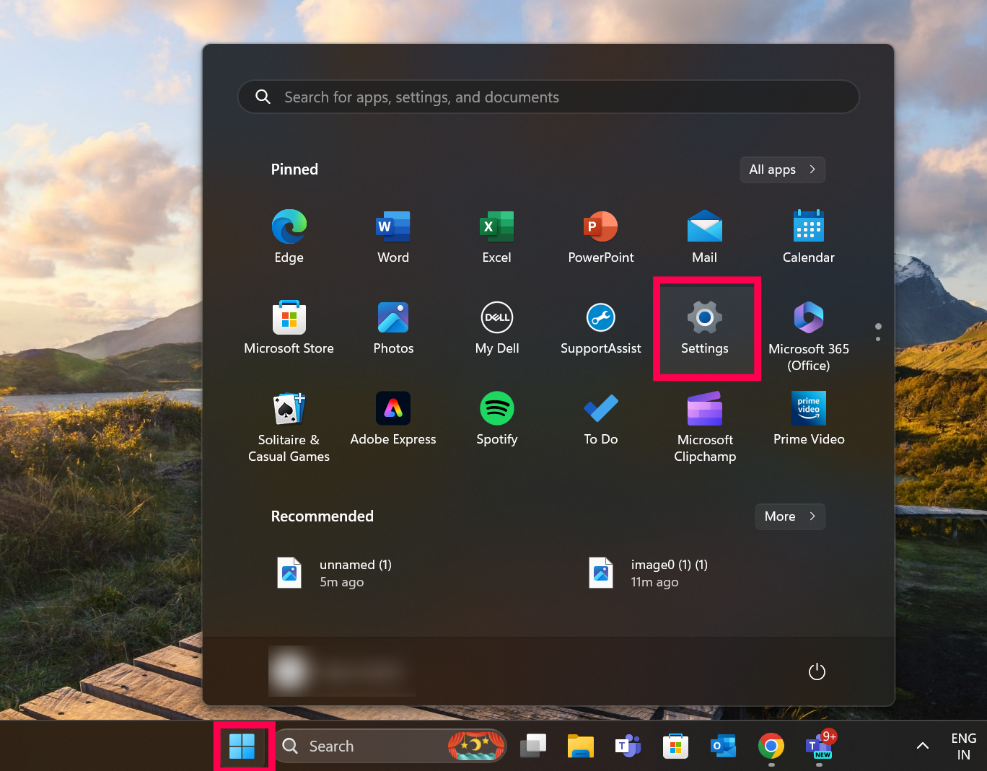
Step 1: Please click on the Windows icon and navigate to the Settings option.
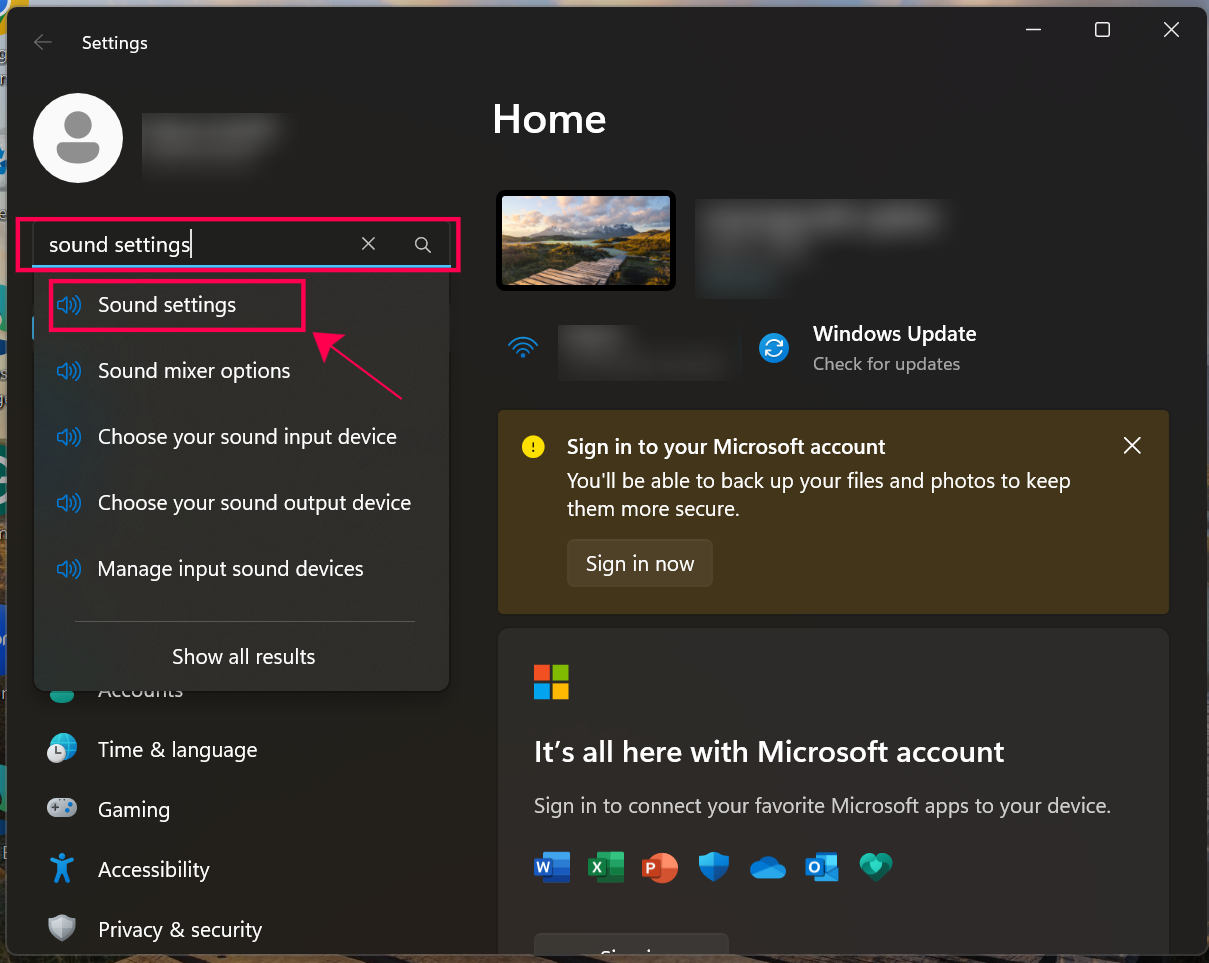
Step 2: Type sound settings in the search bar available to navigate to Sound settings by clicking on it.
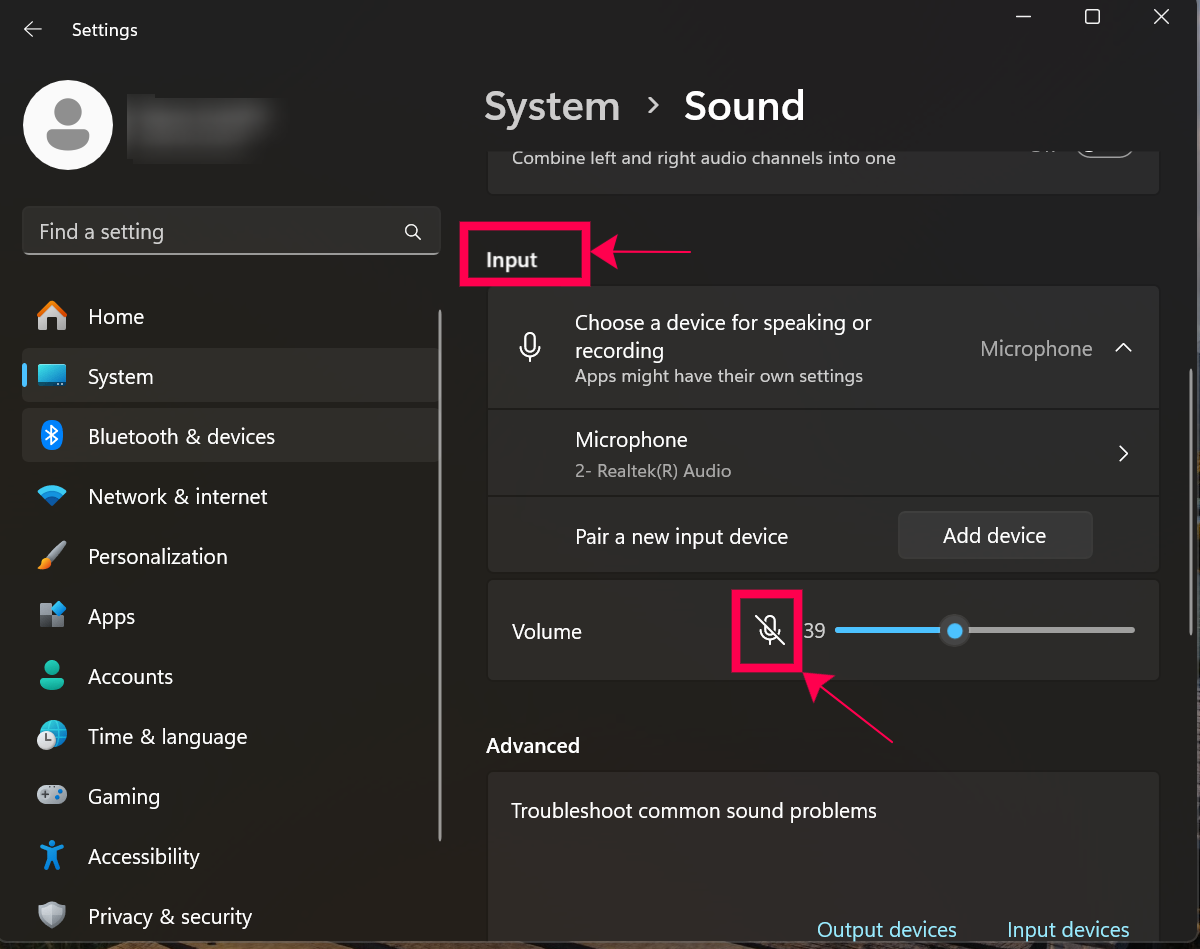
Step 3: Please scroll down to Input and unmute the volume by clicking on the mic icon as highlighted in the screenshot below.
Step 4: Please go back to the assessment page and try speaking a few words, the bar should move.
Please let us know in case the issue persists.
Was this article helpful?
That’s Great!
Thank you for your feedback
Sorry! We couldn't be helpful
Thank you for your feedback
Feedback sent
We appreciate your effort and will try to fix the article